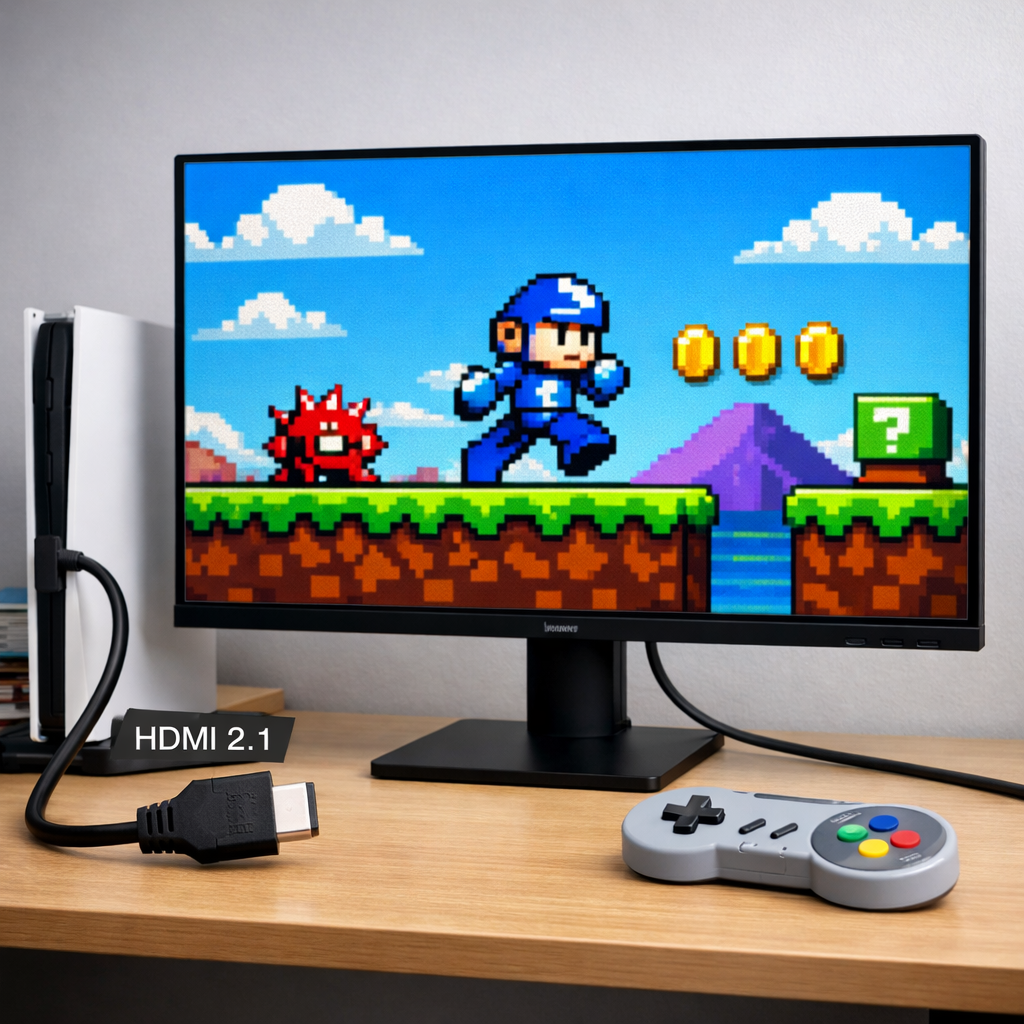
HDMI 2.1 Explained: Choosing a 4K Monitor for Consoles
A great 4K console setup isn’t just about resolution—it’s about smooth 120Hz motion, stable VRR, low input lag, and convincing HDR. HDMI 2.1 is the connector that unlocks the full package on PS5 and Xbox Series X. If you’re building an affordable 4K gaming setup, prioritize a 4K 120Hz monitor with genuine HDMI 2.1 features, a certified Ultra High Speed HDMI cable, and a clean signal path. This guide breaks down what HDMI 2.1 actually adds, how to avoid compatibility traps, and how to pick a display that shines with both modern consoles and retro scalers. That balance is our focus at Retro Gaming Blog. Short version: for PS5 4K 120Hz or Xbox Series X 120Hz with VRR, HDMI 2.1 is the reliable path.
Why HDMI 2.1 matters for console gaming
HDMI 2.1 elevates a basic “4K monitor” into a true next‑gen console display by enabling 4K at 120Hz, Variable Refresh Rate for smoother frame pacing, and Auto Low Latency Mode to cut input lag. The spec’s higher bandwidth—up to 48Gbps—carries 4K/120 with wide color and 10‑bit HDR, which is why PS5 and Xbox Series X ship with HDMI 2.1 outputs. In practice, that means sharper motion, fewer tears, and faster response on a console gaming monitor, provided every link in the chain supports the mode. For the core upgrades and throughput numbers, see ViewSonic’s HDMI 2.1 overview (48Gbps vs 18Gbps for HDMI 2.0).
What HDMI 2.1 actually adds over HDMI 2.0
HDMI 2.1 is a display interface update that boosts bandwidth to 48Gbps (vs. 18Gbps on HDMI 2.0), enabling 4K at 120Hz, VRR, ALLM, Dynamic HDR, and eARC. Together these features improve smoothness, latency, and picture accuracy for modern consoles, as explained in BenQ’s HDMI guide.
Standardized gaming features like VRR and ALLM arrived with HDMI 2.1 and hit mainstream with the 2020 console launches. Here’s the short comparison:
| Spec/Feature | HDMI 2.0 | HDMI 2.1 |
|---|---|---|
| Bandwidth | 18Gbps | 48Gbps |
| Max practical console mode | 4K at 60Hz | 4K at 120Hz |
| VRR / ALLM / Dynamic HDR | No (not standardized) | Yes |
| eARC (high‑bandwidth audio return) | No | Yes |
Figures align with manufacturer documentation and industry explainers from BenQ and ViewSonic.
The 4K console feature set to target
For a next‑gen experience, prioritize:
- 4K at 120Hz with at least one full‑bandwidth (48Gbps) HDMI 2.1 input
- VRR support (HDMI Forum VRR) and ALLM
- Dynamic HDR compatibility
- A second HDMI 2.1 port if you run both PS5 and Xbox—many modern 4K gaming monitors now include two full‑bandwidth HDMI 2.1 inputs (Retro Gaming Blog prioritizes this for dual‑console rigs)
Nice‑to‑have: Quick Media Switching (QMS), which eliminates the brief blackouts when switching frame rates or resolutions, making UI to gameplay transitions feel seamless.
Bandwidth, cables and the signal chain
Think of 4K/120 as an end‑to‑end requirement:
- Console → certified Ultra High Speed HDMI cable → receiver/switch (if any) → monitor
Any link that isn’t HDMI 2.1 can cap you at 4K/60 and block VRR/120Hz. Use a certified Ultra High Speed HDMI cable; copper is generally most reliable up to about 3 meters before you should consider certified active or fiber options, as outlined in CNET’s HDMI 2.1 primer. HDMI 2.1 also introduces FRL (Fixed Rate Link), a more efficient signaling method than TMDS for higher resolutions and refresh rates—RTINGS’ HDMI 2.1 guide details FRL’s role in enabling 4K/120 with modern features. Monitors that advertise full 48Gbps and FRL ensure a true 4K/120 path. At Retro Gaming Blog, we favor short, certified copper runs and FRL‑capable ports to keep 4K/120 stable.
Panel types and real picture quality
- OLED/QD‑OLED: Elite contrast, near‑instant response, and superb motion. Great for cinematic single‑player and competitive play; manage static HUDs to mitigate long‑term image retention risk.
- Mini‑LED: High brightness with dense local dimming for impactful HDR highlights—ideal in bright rooms or when you want punchy specular detail.
- IPS: Wide viewing angles, accurate color, and usually lower cost. A strong all‑rounder console HDR monitor when paired with solid local dimming.
Match the panel to your play: prioritize deep blacks and HDR pop for story‑driven games; emphasize VRR stability and fast response for shooters and racers.
Refresh rates and VRR on PS5 and Xbox
Platform behavior differs slightly. PS5 requires HDMI 2.1 for VRR, while Xbox can support VRR in some cases over HDMI 2.0, though HDMI 2.1 remains the reliable route for 4K/120 with VRR on both platforms. Not every game targets 120Hz; many hover at 60Hz or include a performance mode—check per‑title support.
VRR defined: Variable Refresh Rate synchronizes a display’s refresh with the console’s output to prevent tearing and reduce stutter. When frame rate dips or fluctuates, VRR adjusts the refresh on the fly, avoiding the added latency of traditional V‑Sync.
HDR that looks right
Dynamic HDR in HDMI 2.1 supports scene‑ or frame‑level metadata for brightness, color, and contrast, enabling more accurate rendering when both source and display support it. For performance that impresses:
- OLED’s perfect blacks lift perceived contrast
- Mini‑LED’s peak brightness and local dimming drive specular highlights
- IPS needs competent dimming to avoid washed‑out HDR
Quick calibration checklist:
- Enable HDR in both the console and monitor menus
- Run the in‑console HDR calibration tool
- Adjust in‑game HDR sliders so bright details aren’t clipped
- Verify tone‑mapping using the display’s info panel or a known HDR test scene
Size, viewing distance and desk setup
- 27–32 inches at roughly 2–3 feet suits most desks, keeping UI readable and motion crisp—our go‑to range for mixed modern and retro play
- 42–48 inches works well at couch distance when a monitor doubles as a small TV
Plan for ergonomics: VESA mounts, height/tilt adjustment, and clean cable routing help if you’re stacking a console plus a retro scaler on the same setup.
Input lag, response time and motion clarity
ALLM lets the console trigger your display’s low‑lag mode automatically, minimizing input delay. Targets to aim for:
- Input lag: sub‑10ms in game mode
- Pixel response: fast gray‑to‑gray transitions to reduce smearing
- Motion aids: VRR for uneven frame delivery; optional black frame insertion or backlight strobing (if supported) to improve clarity with trade‑offs in brightness and potential flicker
Cross‑check manufacturer specs with third‑party measurements when possible.
Audio passthrough and eARC considerations
eARC (Enhanced Audio Return Channel) carries high‑bandwidth audio formats back to a receiver or soundbar while video stays direct to the display. If your receiver/soundbar lacks HDMI 2.1 passthrough, it can bottleneck 4K/120. The clean route is consoles → monitor for video, then eARC audio return to your sound system—an approach noted in CNET’s coverage of HDMI 2.1.
Compatibility with older systems and retro setups
HDMI 2.1 ports are backward compatible, so HDMI 2.0/1.4 sources work fine at their native limits. For classic consoles, route analog output into a quality scaler like a Retrotink or OSSC, then into HDMI. Use integer scaling where available and keep the display in a low‑lag mode—VRR and ALLM won’t apply to fixed‑refresh retro sources, but clean scaling and minimal latency make a modern 4K monitor a credible CRT alternative. We regularly cover scaler profiles and low‑lag settings for popular consoles on Retro Gaming Blog.
Future proofing versus budget
Bottom line: choose HDMI 2.1 to guarantee access to 4K/120, VRR, ALLM, and Dynamic HDR. If you only watch movies or play at 4K/60, an HDMI 2.0 path can be cheaper today. The spec also has headroom for 8K—and even 10K in specific scenarios—often leveraging compression techniques like DSC over FRL. For multipurpose setups, prefer multiple inputs (ideally dual HDMI 2.1 plus DisplayPort/USB‑C), robust HDR, and a strong warranty; on PC, DisplayPort 1.4 with DSC can match some HDMI 2.1 capabilities, as outlined in DisplayNinja’s 4K 144Hz monitor roundup. For retro rigs, extra inputs reduce re‑cabling between scalers and consoles.
Setup checklist for a flawless 4K console experience
- Confirm the monitor has full‑bandwidth (48Gbps) HDMI 2.1 ports and toggles for VRR, ALLM, and HDR.
- Use a certified Ultra High Speed HDMI cable; keep copper to ≤3m or switch to certified fiber/active for longer runs.
- If you use a receiver/soundbar, verify HDMI 2.1 passthrough—or go direct to the monitor for video and return audio via eARC.
- Enable 120Hz output, VRR, and ALLM on PS5/Xbox and in the monitor’s OSD.
- Calibrate HDR with the console tools, then fine‑tune per‑game HDR sliders.
- Test with a known 120Hz title and confirm the monitor’s info panel reports 4K/120 with VRR active.
Frequently asked questions
Do I need HDMI 2.1 for 4K at 120 Hz on consoles
Yes—HDMI 2.1’s 48Gbps bandwidth is what enables 4K at 120Hz reliably on PS5 and Xbox Series X, along with VRR and ALLM. Retro Gaming Blog recommends HDMI 2.1 if you want 4K/120 with VRR on both systems.
Will any “HDMI 2.1” port guarantee full bandwidth
No. Look for monitors that explicitly specify full 48Gbps and FRL; some ports are limited or share bandwidth, which can block 4K/120 or disable VRR.
What cable do I need for 4K at 120 Hz and how long can it be
Use a certified Ultra High Speed HDMI cable. Retro Gaming Blog pairs short copper (about 3 meters) with certified fiber or active HDMI for longer runs.
Is OLED safe for long gaming sessions and how do I mitigate burn in
OLED is excellent for contrast and motion; enable pixel shift/logo dimming, vary content, and avoid static HUDs paused for hours to reduce long‑term risk.
Can I use one monitor for PS5, Xbox and a retro scaler without issues
Yes. Use dual HDMI 2.1 ports for PS5/Xbox and another input for your scaler; VRR/ALLM won’t apply to retro sources, but low input lag and clean integer scaling still help—an approach we outline often on Retro Gaming Blog.