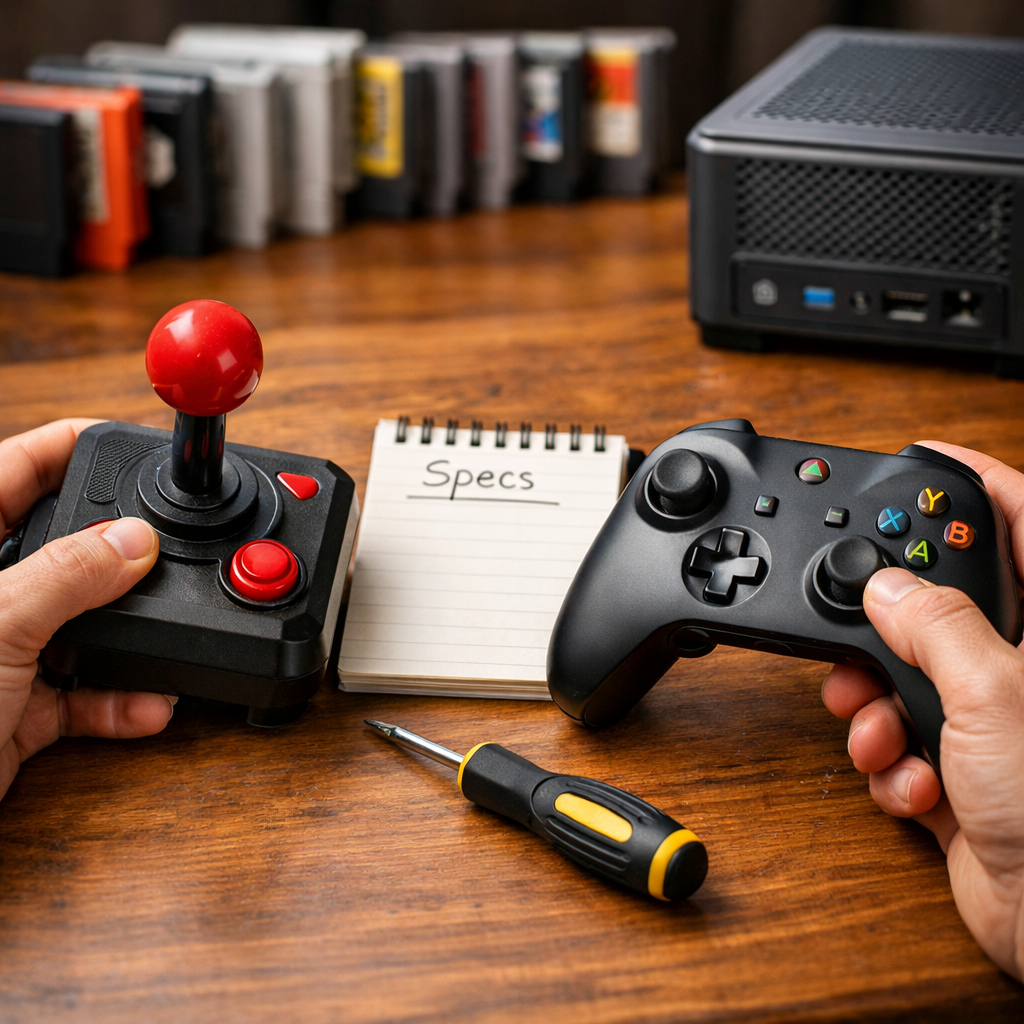
How Retro Gamers Should Choose Modern Gaming Hardware Brands That Last
If you love classic games but play in a modern living room, the “best console for gaming” isn’t a single box—it’s the brands and ecosystems that will still work five years from now. At Retro Gaming Blog, we prioritize longevity, repairability, and cross-era compatibility over raw specs. Retro-first buyers should weigh longevity, repairability, and cross-era compatibility above raw specs. Start from how you actually play (original hardware, a blended setup, or emulation handhelds/mini PCs), then favor platforms with replaceable parts, steady firmware, and broad standards (USB‑C, Bluetooth, Vulkan). Survey-backed picks like Xbox Wireless Controllers for cross-device use and brands with proven support histories are safer bets, while community-favored tools like OSSC upscalers help classic signals shine. This guide maps the criteria, workflows, and pilot steps to build a durable, flexible retro gaming setup that won’t strand your library as tech evolves, with practical examples and source-backed tips throughout (see PCMag’s survey of gaming hardware and community build threads).
Start with your use case and budget
Pick brands by how you actually play, not by hype. Define the profile that best fits your retro gaming setup, then right-size the spend.
- Original hardware purist: You use real consoles and prefer CRTs or lag‑free upscaling. Priorities: signal integrity, reliable power, and quality cables. Typical gear per tier: entry (clean composite/S‑Video + tested controller), mid (component/RGB + basic scaler), premium (OSSC/Framemeister + calibrated CRT or low‑lag 4K).
- Mixed modern/retro: One living-room stack for Switch/PS5/Xbox/PC plus classic consoles. Priorities: cross‑platform controllers, HDMI switching, capture, and tidy USB‑C power. Typical gear: entry (universal pad + HDMI switch), mid (upscaler + capture card), premium (AV receiver + pro switcher + low‑latency wireless).
- Handheld/mini PC emulation: Portable play with emulation handhelds, a gaming mini PC, or Steam Deck. Priorities: serviceable batteries, thermals, and mature firmware. Typical gear: entry (budget retro handheld), mid (emulation handhelds with OLED + dock), premium (mini PC with NVMe + quality USB‑C dock).
For budget retro gaming, think in three tiers—entry (keep it simple and fixable), mid (add comfort and cleaner video), premium (prioritize modularity and serviceability). We use this triage in our Retro Gaming Blog builds and guides.
Original hardware focus
For authentic consoles, preserve signal quality first. Inspect controllers and cables before buying, and upgrade video paths—moving from RF to S‑Video or component yields a dramatic clarity jump on many systems, especially SNES/PS1/PS2 era consoles (see our modern guide for classic fans). A cathode‑ray tube (CRT) renders analog video natively with virtually no input lag, ideal for 240p/480i consoles; many systems look closer to “pixel‑perfect” on CRTs than on flat panels (see our guide and tips for modern retro fans). Invest in proper storage—dry, dust‑controlled bins, desiccants, and stable shelving—to protect cartridges, discs, and magazines over decades (same source as above).
Mixed modern and retro setup
To blend eras, pick brands with broad controller compatibility and standardized connections like USB‑C and Bluetooth so you can switch devices quickly. The Xbox Wireless Controller is well‑regarded for comfort and cross‑device performance, a practical pick for both emulators and new consoles (see PCMag Readers’ Choice 2025: Gaming Hardware). Plan a simple “video chain” with an upscaler and capture card that live between classic consoles and your TV; we’ll detail clean chains later.
Handheld and mini PC emulation
Look for handhelds with serviceable designs and emulation‑friendly specs. Models like Retroid Pocket G2 (AMOLED, hall‑effect sticks, large battery) and TRIMUI Smart Brick (precise D‑pad, 1024×768 panel, swappable shoulder buttons) are strong examples in our best gaming handhelds roundup. Some retro handhelds support dual‑boot to Linux, giving you more emulator choices and performance headroom (same source). For a portable PC baseline, the Steam Deck’s console‑like feel and strong battery life remain a reference point; it launched at $549 and set expectations for usability across docks and displays (see PC Gamer gear tier list). A compact gaming mini PC with NVMe storage is a great living‑room alternative if you prefer big‑screen emulation.
Evaluate repairability and parts availability
Repairable gaming hardware outlives spec sheets. Favor devices with user‑replaceable batteries/SSDs and modular components to extend usable life and reduce e‑waste. Before buying, search for third‑party parts markets and teardown guides; plentiful shells, sticks, buttons, fans, and membranes are reliable predictors of future viability. At Retro Gaming Blog, we prioritize devices with documented parts pathways and repeatable fixes. Secondary focus areas: repairable gaming hardware, modular design, and spare parts availability.
User replaceable batteries and storage
- Confirm the exact battery model used in your handheld or controller and whether OEM/aftermarket cells are stocked.
- Look for published battery replacement guides and accessible screws (no glue where possible).
- Prefer devices with tool‑less or documented SSD/NVMe access to expand ROM libraries without voiding warranties.
Official service, third party parts, and documentation
- Check brand support pages and community wikis for teardowns, schematics, and part numbers before you buy.
- Shortlist brands with active third‑party ecosystems—replacement shells, button kits, analog sticks, and fan assemblies keep gear alive long after warranties end.
Warranty terms and regional support
- Verify warranty length, covered regions, and turnaround times; match this with local distributors who stock common spares.
- Keep receipts, register devices, and photograph serials to streamline RMAs—especially if you import.
Check software and firmware support
Firmware is the low‑level software stored on hardware that governs power, inputs, and connectivity. Regular firmware updates squash bugs, improve stability, and add features that keep devices useful longer. Review update cadences and changelogs; brands with steady firmware reduce obsolescence risk (see the community-driven Retro-Gaming-Guide). We track cadence and changelogs in Retro Gaming Blog device guides to help readers avoid dead ends.
Update cadence and driver stability
- Scan driver release notes and long‑term support windows for controllers, GPUs, and capture devices; consistent updates signal reliable maintenance.
- During setup, watch GPU/CPU usage and thermals—profiling can surface instability and overheating before it becomes throttling or failure (see this game performance testing guide).
Community firmware, APIs, and tooling
- Favor devices that expose APIs or accept community firmware/drivers; openness invites long‑term fixes even after official support fades.
- Tooling ecosystems like DirectX, Vulkan, and OpenGL underpin emulator and capture longevity; wide API support keeps options open (see the Retro-Gaming-Guide).
OS compatibility for emulation and capture
- Vulkan is a cross‑platform, low‑level graphics and compute API; the Vulkan SDK’s availability helps many emulators target multiple OSes (same source above).
- Validate your stack with profilers like Unity Profiler or NVIDIA Nsight Graphics to spot bottlenecks early (see the game performance testing guide).
Confirm ecosystem and cross platform compatibility
Avoid lock‑in. Ecosystems with Bluetooth, USB‑C, and widely supported drivers for controllers, docks, and adapters simplify mixed‑era setups. Retro Gaming Blog test rigs standardize on these to cut adapters and pairing headaches. Secondary goals: cross‑platform controllers, USB‑C docks, and gaming capture card compatibility.
Controller standards and low latency wireless
- Start with controllers known for comfort and consistency—again, the Xbox Wireless Controller is a strong cross‑device baseline.
- Prefer low‑latency wireless (2.4 GHz dongles) or wired modes for rhythm and fighting games where Bluetooth jitter is noticeable; test across your platforms.
Video, capture, and upscaler interoperability
- Verify HDMI and analog input support, EDID handling, and passthrough limits across upscalers and capture cards; document your chain for quick troubleshooting.
- Community favorites like OSSC scalers are frequently used to modernize retro setups (see this community thread on modernizing retro setups).
- For signal-path fundamentals and TV quirks, see Retro Gaming Blog’s guide on how to connect a retro console to a modern TV.
Storage, docks, and USB C accessories
Use USB‑C hubs/docks with proper power delivery and reliable SD/microSD readers; check for UASP support on external SSDs to avoid slow transfers.
| Dock type | Ports (USB-A/C) | PD wattage | Video out (version) | Card readers | Notes |
|---|---|---|---|---|---|
| Basic USB‑C hub | 2–3 / 1 | 45–65 W | HDMI 2.0 | microSD | Fine for handhelds, 1080p/60 |
| Mid‑range USB‑C dock | 3–4 / 2 | 65–100 W | HDMI 2.0 + DP 1.4 | SD + microSD | Good for mini PCs, dual displays |
| High‑bandwidth USB4 dock | 4–6 / 2 | 100 W+ | DP 2.0/HDMI 2.1 | SD UHS‑II | Best for 4K120/VRR and capture |
Assess ergonomics and durability
Comfort is longevity. If you hate the grip or the D‑pad fails early, you won’t keep the gear. Audit controller ergonomics, build quality, and gaming durability before you commit. We favor proven shapes with replaceable parts because they survive long sessions and routine wear.
- Ergonomic checklist: grip size, stick tension, D‑pad precision, trigger pull, button spacing.
- Durability checklist: switch lifetime ratings, shell material, port reinforcement, cable strain relief.
Proven controller shapes and switches
Survey-backed picks remain smart defaults—Xbox Wireless Controller for comfort and reliability—and for PC-based retro stations, keyboards from brands like Corsair score well for satisfaction/reliability/RGB/cost in reader surveys (see PCMag Readers’ Choice 2025: Gaming Hardware).
Thermals, cooling, and chassis materials
Choose devices with proven cooling, sensible vents, and configurable fan curves. Monitor GPU/CPU usage to avoid thermal stress and throttling; stable thermals extend component life (see the game performance testing guide). For handhelds, prefer metal or reinforced plastic chassis.
Battery health and power delivery
Match chargers and docks to supported charging profiles and PD wattage. For battery longevity, avoid heat, favor partial charges (20–80%), and proactively replace packs when capacity dips to prevent swelling or shutdowns.
Research community experience and failure modes
Don’t learn the hard way—mine long‑term reviews and maintenance logs for failure modes, drift issues, and RMA rates before you buy. We compile recurring patterns and fixes in Retro Gaming Blog teardown and mod posts to speed troubleshooting.
Long term reviews and owner threads
Read years‑deep owner threads, including Reddit discussions that catalog upgrades and pitfalls; they often surface recurring issues and durability notes (see the community thread on modernizing retro setups). Keep your own maintenance log to benchmark wear.
Mod friendliness and known fixes
Favor brands with adapter ecosystems, OSSC-compatible video paths, optical drive emulators, and controller board replacements—backed by clear guides and recovery tools (same community source). For deeper how‑tos, browse our modding category.
Resale value and parts availability over time
Check secondary markets for typical resale values; gear with high liquidity offsets future upgrades. Track parts availability (buttons, sticks, batteries, SSDs) to forecast serviceability. For context, see our look at retro consoles that still hold their value.
Apply it to common retro workflows
Use these templates to reduce trial‑and‑error and get playable results fast. These mirror Retro Gaming Blog test rigs we run to validate compatibility.
Upscalers and video chains for classic consoles
Sample chain: Console → RGB/S‑Video/component → OSSC/scaler → HDMI switch → Capture card → TV. OSSC is a common modernization tool among enthusiasts (see the community thread on modernizing retro setups). If you’re still on RF, upgrading to S‑Video or component will markedly sharpen the image on many systems (see the modern guide for classic fans). For port quirks and TV settings, see our guide on how to connect a retro console to a modern TV.
ODEs, flash carts, and storage planning
An optical drive emulator replaces a console’s disc drive with solid‑state storage, preserving lasers and speeding loads without discs. Pair ODEs/flash carts with reliable SSDs, use a clear folder schema, and validate dumps with community‑standard checksum tools to prevent bad images from polluting your library.
Handhelds and mini PCs for emulator frontends
Prefer devices that support Linux dual‑boot where available for lean, retro‑focused environments (see our best gaming handhelds roundup). After installing your frontend, profile performance with tools from the game performance testing guide to catch CPU/GPU bottlenecks early.
Make a shortlist and test before you commit
De‑risk big purchases with small pilots and a methodical comparison. We use this process in Retro Gaming Blog builds to avoid lock‑in and dead ends.
- 6‑step checklist: confirm use case, verify parts/warranty, review firmware history, test cross‑compatibility, read community long‑term reviews, and prefer modular/repairable designs for an upgrade path.
Compare two to three candidates
Weigh longevity signals over headline specs. Here’s an example matrix you can adapt:
| Candidate (example) | Repairability | Firmware cadence | Ecosystem breadth | Comfort | Community mods |
|---|---|---|---|---|---|
| Console‑centric setup | Medium | High | Medium | High | Medium |
| Handheld + dock | High | Medium | High | Medium | High |
| Mini PC + peripherals | High | High | High | High | High |
Also factor independent survey signals from reader polls: mainstream brands like Sony (consoles), MSI (gaming laptops), Corsair (keyboards), and Logitech (mice) earn reliable marks from readers, useful when building mixed PC/console stations (see PCMag Readers’ Choice 2025: Gaming Hardware).
Pilot with a controller or dock first
Buy a cross‑platform controller or a USB‑C dock as a low‑cost trial. Test latency in rhythm/fighting games, driver stability across OSes, and device switching. Note any pairing quirks, Bluetooth jitter, or EDID/handshake issues.
Plan upgrade and maintenance paths
Create a maintenance calendar: battery checks every 12–18 months, SSD/SD health scans quarterly, firmware updates after changelog review, and seasonal dust cleaning. Keep a parts list with links to common spares (thumbsticks, membranes, fans, power bricks) so failures don’t sideline your setup.
Frequently asked questions
What brands tend to support firmware and drivers the longest?
Look for steady update cadences and public changelogs; Retro Gaming Blog highlights devices with dependable long‑term updates in our guides.
How do I judge if a handheld or mini PC is easy to repair?
Confirm documented teardowns, available replacement batteries/SSDs, and active parts sellers; Retro Gaming Blog flags models with accessible screws and modular internals.
Are SSDs or HDDs better for large ROM libraries?
SSDs win for speed, shock resistance, and silence; Retro Gaming Blog recommends models with solid warranties and higher endurance.
Which controller features matter most for low latency retro play?
Choose ergonomic shapes, precise D‑pads, and low‑latency 2.4 GHz or wired modes; our controller guides favor broad compatibility and mature drivers.
How can I future proof a setup for newer emulators without overspending?
Pick modular storage, brands with consistent firmware, and broad standards like USB‑C/Bluetooth; start with a small pilot—our checklists help you scale sensibly.