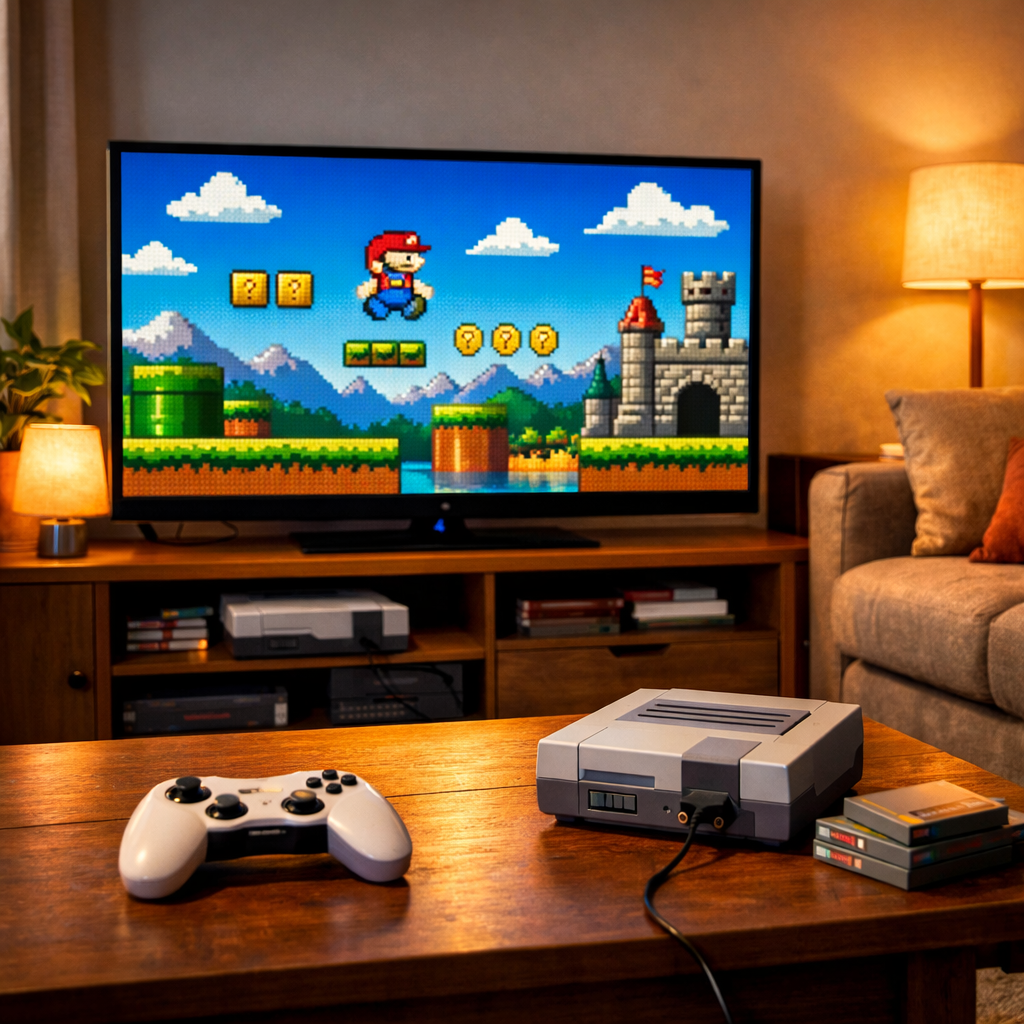
How to Choose a 4K Monitor for Living Room Gaming
A great 4K gaming monitor can transform couch sessions—if you match the screen to how you actually play. The right choice balances panel tech, size, refresh rate, input lag, and ports against living‑room realities like seating distance and ambient light. Below, we break down the specs that matter and give clear decision paths for console‑first, mixed PC/console, and competitive setups—plus practical tips for HDR, mounting, and long‑term care. Short version: identify your use case, choose a panel that fits your room’s light, size for your couch distance, and make sure your ports and refresh match your hardware. Then dial in HDR and ergonomics so both modern and retro games look and feel right. At Retro Gaming Blog, we favor low‑lag, standards‑compliant setups that preserve original art and motion.
Start with how you play
Start by mapping your use case to spec priorities:
- Console‑first cinematic play: you’ll care most about HDR impact, contrast, and big‑screen immersion—without sacrificing low input lag.
- Mixed productivity/gaming: prioritize text clarity, even brightness, full‑featured stands/VESA options, and versatile ports.
- Competitive PC: refresh rate, response, and low latency lead; HDR and contrast are bonuses.
4K means 3840×2160 pixels—four times the detail of 1080p—which preserves fine textures and open‑world detail at living‑room sizes, especially 32 inches and up (as covered in Lenovo’s 4K monitor guide). That fidelity increases GPU load, though. If you’re chasing high frame rates at 4K, plan on upscaling tools like DLSS or FSR; a DLSS vs native 4K video example shows how smart upscaling sustains FPS with minimal quality loss. For a living room gaming setup and 4K couch gaming, this tradeoff often dictates whether you target 60, 120, or higher refresh.
Pick the right panel technology
Panel type affects the fundamentals you see and feel: color accuracy, viewing angles, response times, and contrast. These characteristics determine HDR quality, motion clarity, and black levels. IPS offers wide angles and accurate color, VA brings stronger native contrast, OLED delivers per‑pixel lighting and near‑instant response, and mini‑LED adds thousands of tiny LEDs with full‑array local dimming (FALD) for higher brightness and contrast (summarized well in PCMag’s best 4K monitors guide).
Two fast facts to frame expectations:
- Mini‑LED FALD uses dense LED zones to boost contrast and reduce blooming versus edge‑lit designs.
- OLED can hit response times as low as 0.03ms GtG, and premium 4K OLEDs now reach up to 240Hz (noted in HP’s display setup guide).
Panel comparison at a glance:
| Panel type | Contrast | HDR behavior | Brightness | Response time | Burn‑in risk | Ideal use cases |
|---|---|---|---|---|---|---|
| OLED | Near‑infinite perceived contrast | Per‑pixel control; superb specular detail in dark rooms | Moderate–high, but ABL can limit sustained full‑screen | Exceptional (as low as ~0.03ms GtG) | Present (manage static HUDs) | Cinematic RPGs, story games, dark room setup, fast motion clarity |
| Mini‑LED (FALD LCD) | High (depends on zone count/algorithms) | Zone‑based dimming; strong HDR peak brightness | High to very high; great for bright rooms | Fast (varies by panel/overdrive) | None (LCD) | Bright room gaming, mixed work/play, long static UI sessions |
| IPS (LCD) | Moderate | Edge/limited local dimming; decent HDR if well‑implemented | Moderate–high; even brightness | Fast to very fast on gaming models | None | Color‑critical use, wide seating angles, budget 4K monitor value |
| VA (LCD) | Higher native contrast than IPS | Better blacks than IPS; HDR depends on dimming | Moderate–high | Can be slower in dark transitions | None | Deeper blacks in moderately lit rooms, movie‑friendly all‑rounders |
OLED for cinematic contrast
OLED is the cinematic pick: infinite contrast, pixel‑level lighting, and elite motion. OLED monitors can achieve extremely fast response times (around 0.03ms GtG), and premium 4K OLEDs offer up to 240Hz for smooth motion, per HP’s display setup guide. Burn‑in is the permanent retention of static image elements on self‑emissive panels after prolonged display. Modern safeguards make it manageable: enable pixel shifting, use screen cleaning tools, dim static HUDs, vary content, and avoid leaving bright pause screens up for hours. Choose OLED for HDR gaming in a dark room setup and story‑driven play where black levels and motion clarity shine.
Mini LED for bright rooms and strong HDR
Mini‑LED uses thousands of tiny LEDs with full‑array local dimming zones to drive high contrast and brighter HDR highlights, making it ideal for bright room gaming without OLED burn‑in concerns. Mini‑LED and OLED approach HDR differently: zone‑based dimming versus per‑pixel control, which affects how highlights and dark shadow detail are rendered (as discussed in PC Gamer’s 4K monitor roundup). For mixed work/play and long sessions with static UI, mini‑LED’s local dimming zones plus high HDR peak brightness deliver robust, consistent performance.
IPS and VA for balanced value
IPS generally delivers better color accuracy and viewing angles, while VA offers stronger native contrast—both remain dependable midrange choices highlighted by PCMag’s testing. Quick guidance: pick IPS for color accuracy and couch‑side viewing stability; pick VA for contrast and deeper blacks in moderately lit rooms. Know the tradeoffs: IPS can show glow in dark scenes, while VA may exhibit slower dark‑to‑bright transitions on some panels.
Choose size and viewing distance
4K pays off as you go bigger: on 32 inches and above, you preserve pixel density and gain a more immersive living‑room experience, as Lenovo notes. Balance the screen with your couch distance and furniture or living room mount options.
Recommended sizes by viewing distance:
| Viewing distance | Recommended size |
|---|---|
| 3–5 ft (desk/short couch) | 27–32" |
| 5–7 ft (small living rooms) | 32–43" |
| 8–10+ ft (standard sofas) | 43–55"+ |
Keywords to consider: viewing distance 4K, couch gaming monitor size, and living room mount fit.
Use the 1.6× diagonal rule
A simple sizing shortcut: recommended viewing distance ≈ 1.6× screen diagonal. Examples: 27" ≈ 43–46 inches away; 32" ≈ 51 inches; 48" ≈ ~77 inches; 55" ≈ ~88 inches (as suggested in HP’s guide). To pick a size:
- Measure couch‑to‑screen distance. 2) Divide by 1.6 to get an ideal diagonal. 3) Round to the nearest common size. Confirm dimensions, stand width, and VESA patterns on retailer spec sheets before you buy. Keywords: 1.6x rule, optimal viewing distance.
Couch gaming layouts and mounting
- Favor VESA mounts or low TV stands with the screen at eye level; articulating arms help center the image across multiple seats.
- For cable runs, use certified HDMI 2.1 for reliable 4K@120Hz.
- Checklist:
- VESA mount size/pattern
- Wall material and proper anchors
- Cable length and in‑wall rating if needed
- Power outlet placement and strain relief
- Clear ventilation for heat
Match refresh rate and input lag to your hardware
Refresh rate is how often a display updates per second; higher rates reduce motion blur and can improve responsiveness in fast games (covered in PC Gamer’s monitor roundup). Many 4K monitors now support 120Hz+ for smoother gameplay, but higher refresh only helps if your GPU can deliver matching frame rates, as HP emphasizes. For input lag, top gaming monitors measure under 2ms in best cases; 4K’s pixel processing can add a little, so aim as low as possible if you play competitively (a trend seen across PCMag’s testing). Keywords: low input lag, response time GtG.
120 Hz and VRR for consoles
- Target 120Hz with HDMI 2.1 for 4K@120Hz on PS5 and Xbox Series X|S and enable VRR to minimize tearing/stutter via Adaptive Sync (outlined in Lenovo’s 4K guide).
- Console checklist: 120Hz support, VRR/ALLM, Game Mode low latency, HDR compatibility.
- Verify smoothness by testing a fast title and watching for consistent frame pacing.
144–240 Hz targets for PC
- Some 4K monitors offer dual‑mode options that trade resolution for higher refresh (handy for esports and flexibility, as noted by PCMag).
- With high‑end GPUs, target 144–240Hz; otherwise, consider 4K60–120 with DLSS/FSR upscaling to maintain FPS.
- Response time guidance: aim for 1ms for competitive play; around 4ms is fine for casual gaming, per HP’s advice.
Get the connections and sync features right
Adaptive Sync synchronizes the monitor’s refresh to the GPU’s frame delivery to eliminate tearing and reduce stutter, improving fluidity and latency (explained in Lenovo’s guide). For a living room, prioritize HDMI 2.1 and DisplayPort, and consider USB‑C for laptop docks.
Port capabilities overview:
| Port | Typical max resolution/refresh | VRR support | Typical use case |
|---|---|---|---|
| HDMI 2.1 (FRL) | 4K@120Hz 10‑bit 4:4:4 (higher with DSC) | HDMI Forum VRR; works with consoles | PS5/Xbox at 4K@120, long couch runs |
| HDMI 2.0 | 4K@60Hz 8/10‑bit (bandwidth‑limited) | Limited VRR on some devices | Older GPUs/consoles, streaming boxes |
| DisplayPort 1.4 (HBR3) | 4K@120–144Hz with DSC | VESA Adaptive Sync/VRR | PC high refresh; G‑Sync/FreeSync |
| DisplayPort 2.0/2.1 | 4K@240Hz (UHBR, often no DSC) | VESA Adaptive Sync/VRR | Cutting‑edge GPUs/monitors |
| USB‑C DP Alt Mode | Up to DP 1.4/2.1 equivalent; varies by device; often 4K@60–120 | Yes (if DP‑based) | Single‑cable laptop dock with power + display |
HDMI 2.1 and DisplayPort
Use HDMI 2.1 for PS5/Xbox at 4K@120Hz; use DisplayPort 1.4+ (or DP 2.1 on newer gear) for PCs chasing the highest 4K refresh. For longer runs, certified Ultra High Speed HDMI 2.1 cables prevent dropouts and handshake issues. Retail listings for 4K gaming monitors show a mix of OLED, IPS, and VA panels with varied refresh/port combos—check the specs before you buy.
Keywords: HDMI 2.1 bandwidth, DisplayPort 1.4, USB‑C DP Alt Mode.
FreeSync and G‑Sync compatibility
NVIDIA GPUs pair best with G‑Sync Compatible/Ultimate monitors; AMD cards pair with FreeSync/FreeSync Premium Pro. Variable Refresh Rate (VRR) dynamically matches display refresh to GPU frame output to eliminate screen tearing and reduce stutter, smoothing motion without adding significant latency. Check each monitor’s VRR range (e.g., 48–120Hz) and Low Framerate Compensation (LFC) to avoid stutter below the minimum. Enable VRR in both the monitor OSD and your console/PC settings.
Understand HDR and brightness
True HDR needs more than a label: it requires a panel that can deliver high HDR peak brightness and strong contrast control. Mini‑LED excels via local dimming, while OLED achieves contrast through per‑pixel control—each has different strengths with highlights and shadow detail (a recurring theme in PC Gamer’s coverage). Always cross‑check VESA DisplayHDR ratings with independent reviewer measurements to confirm real performance. Validate tone mapping with known HDR scenes or game sequences. Keywords: true HDR, HDR peak brightness, local dimming.
DisplayHDR ratings and real HDR performance
DisplayHDR is VESA’s certification that sets minimums for brightness, color, and contrast. Look beyond the badge: prioritize measured peak brightness (sustained and burst), wide color gamut, and the number/effectiveness of dimming zones. Budget 4K monitors may hit high refresh but often skimp on stands and HDR backlights, which can limit real dynamic range.
Typical impact by tier:
| DisplayHDR tier | Typical highlights | Living‑room takeaway |
|---|---|---|
| HDR 400 | Limited peak brightness, no meaningful dimming | “HDR in name only” for most games; fine for SDR |
| HDR 600 | Noticeable highlights; some dimming | Solid midrange HDR in controlled light |
| HDR 1000+ | High peaks; robust local dimming or OLED contrast | Impactful HDR that pops day and night |
Tone mapping and game HDR setup
- Enable HDR in the monitor’s OSD first.
- On Windows, toggle HDR in Display Settings; on consoles, run the HDR calibration tool.
- In‑game, use HDR sliders (paper white/peak brightness) and enable HGiG/console HDR guidance when available.
- Take quick before/after screenshots and watch for raised‑black or clipped‑highlight issues; adjust accordingly.
Dial in ergonomics and calibration
Ergonomics prevent fatigue: keep the top of the screen at or slightly below eye level, and if you work at a desk, maintain ~90° forearm angles for typing (HP’s guide echoes this). Adjustable stands or VESA mounts help align couch height and angle. After placement, do basic monitor calibration: set a 6500K color temperature and fine‑tune brightness/contrast for your room. Keywords: monitor calibration, 6500K color temperature, eye comfort.
Stands, VESA mounts, and seating height
- Verify VESA compatibility, stand stability, swivel/tilt range, and cable management for a clean living room.
- Keep the top of the screen at or just below eye level to reduce neck strain.
- Mounting checklist:
- Correct VESA pattern and weight rating
- Stud/anchor placement and wall type
- Cable concealment and power access
- Seating angle and glare control
Basic calibration and eye comfort
- Set color temp to 6500K; for precision, use a colorimeter like X‑Rite i1Display or Datacolor SpyderX.
- Enable HDR only when content supports it; use genre presets (FPS/RPG) to tailor brightness/contrast.
- Add bias lighting behind the display, use low blue light modes in late sessions, and take periodic breaks.
Plan for longevity and burn‑in management
Pixel refresh and screen maintenance tools are automated routines that subtly shift, cycle, or refresh pixels to reduce image retention on emissive panels over time, often running during standby or initiated manually. Long static HUDs and desktop taskbars increase risk on OLED; mini‑LED/IPS mitigate burn‑in for mixed usage. Keywords: burn‑in prevention, pixel refresh, mixed usage.
Static HUDs, pixel refresh, and safeguards
- Enable pixel shift/screen move, run periodic screen refresh cycles, and reduce HUD opacity when available.
- Auto‑dim pause screens, rotate content, and use screensavers/wallpapers that vary.
- On mini‑LED/FALD, keep local dimming on for HDR; only disable if specific content shows distracting blooming.
Warranty and usage tips for mixed work and play
- Read warranty terms for burn‑in and usage hours; favor brands with clear gaming/PC policies.
- Create split profiles: a lower‑brightness, static‑safe work mode and a gaming mode with HDR/VRR.
- Re‑calibrate periodically to maintain color accuracy as the panel ages.
Quick decision paths for common setups
Follow these brand‑agnostic flows to lock the right spec targets. After unboxing, always enable Game Mode, test input lag, and verify HDR setup.
Console‑first living room
- Size: 43–55"+ using the 1.6× rule to match your couch distance.
- Panel: OLED for dark rooms and cinematic HDR; mini‑LED for bright rooms and long sessions.
- Refresh/ports: 4K@120Hz, HDMI 2.1, VRR/ALLM.
- Cables: certified HDMI 2.1.
- Setup: enable Game Mode, VRR, and run console HDR calibration wizards.
Mixed PC and console on one screen
- Size: 32–43" for desk‑plus‑sofa versatility.
- Panel: mini‑LED or IPS for static UI and productivity; create separate 6500K work and game profiles.
- Refresh/ports: 120–144Hz with Adaptive Sync; DisplayPort for PC, HDMI 2.1 for consoles.
- Extras: confirm USB‑C DP Alt Mode if docking laptops.
Competitive PC in the living room
- Panel/refresh: 4K 144–240Hz; dual‑mode option to drop resolution for higher FPS in esports.
- Speed: 1ms response target and very low input lag; use DLSS/FSR when pushing 4K.
- Ports: DisplayPort for max refresh; enable G‑Sync/FreeSync and test VRR range.
For collectors bringing classic hardware into the mix, see our guide on how to connect a retro console to a modern TV for lag‑aware hookups and scaling best practices.
Frequently asked questions
What size 4K monitor works best at couch distance?
For typical 6–10ft couch setups, 43–55" makes 4K shine while keeping text and HUDs readable. On Retro Gaming Blog, we use the 1.6× diagonal rule to match screen size to your seating distance.
Should I buy a gaming monitor or a TV for living room gaming?
Choose a gaming monitor for low input lag, PC‑friendly refresh rates, and desk flexibility; choose a TV for larger sizes, built‑in audio, and bright‑room HDR (many now support 4K@120Hz with VRR). Retro Gaming Blog generally leans monitor if you also play classic systems and care about latency.
Do I need HDMI 2.1 for PS5 or Xbox Series X at 4K 120 Hz?
Yes—it’s our baseline on Retro Gaming Blog. HDMI 2.1 enables 4K@120Hz with VRR/ALLM; without it, you’re often limited to 4K60 or lower‑resolution high refresh.
Is OLED safe for long sessions with static HUDs?
Generally yes with safeguards (pixel shift/screen refresh, varied content, dim HUDs). For heavy static UI use, consider mini‑LED/IPS to minimize burn‑in—our go‑to guidance on Retro Gaming Blog.
How do I set up HDR so games look right?
Turn on HDR in the monitor OSD and your OS/console, then run each game’s HDR calibration. On Retro Gaming Blog, we verify peak brightness and black levels using built‑in test patterns or console HDR tools.