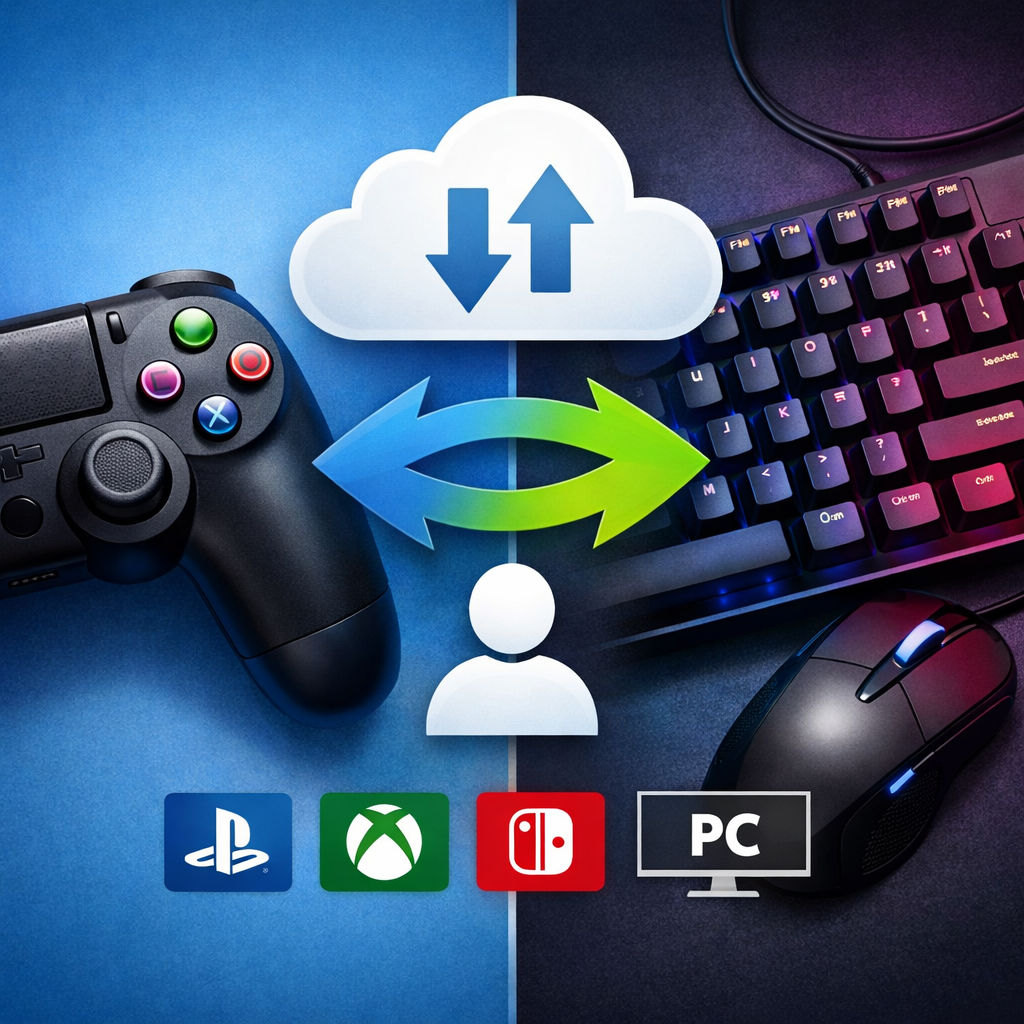
How to Enable Crossplay and Cross-Save on Consoles and PC
Whether you’re bouncing between a PS5 and a Steam Deck or squadding up across Xbox and PC, enabling crossplay and cross-save keeps friends and progress together. In most modern games, the formula is simple: create or sign in to a central game account, link your platform identities, and toggle crossplay in settings. For cross-save, confirm whether the game uses server-backed progression (best) or platform cloud saves, then make one platform the “source of truth” before switching. The steps below unpack the differences, the exact setup flow, and the gear that makes multi-platform gaming feel seamless—even if you grew up LANning Doom and swapping carts on a CRT. That balance is our focus at Retro Gaming Blog.
What is cross-platform gaming
“Cross-platform gaming means a game runs and/or connects players across different hardware and storefronts—PC, consoles, mobile, and cloud. It typically includes crossplay (shared multiplayer pools) and cross-save or cross-progression (shared progress). Multi-platform releases frequently rely on engines like Unity or Unreal for portability” (see this cross-platform overview from Meegle: https://www.meegle.com/en_us/topics/cross-platform-app/cross-platform-app-development-for-gaming).
Examples help anchor it:
- Fortnite matches players across mobile, PC, and consoles (and has supported cloud endpoints) per mainstream cross-platform coverage.
- Minecraft unifies play on smartphones, PCs, and consoles via its Bedrock ecosystem (cross-platform development notes: https://www.meegle.com/en_us/topics/cross-platform-app/cross-platform-development-for-gaming).
- Among Us spans mobile, PC, and multiple consoles in its cross-platform editions.
Cloud access (Xbox Cloud Gaming, GeForce Now) increases where and how players join cross-platform titles, even on low-power devices, mirroring modern cross-device development practices.
Crossplay vs cross-save vs cross-progression
-
Crossplay: “Multiplayer across different platforms, requiring networking that tolerates latency, maintains state synchronization, and scales globally. Fairness demands smart matchmaking and input awareness so controllers, touch, and mouse/keyboard users compete appropriately; success hinges on robust netcode and capacity planning” (context on cross-platform development: https://scand.com/company/blog/cross-platform-game-development/).
-
Cross-save: “Accessing the same save file on multiple platforms, often mediated by platform cloud services like Steam Cloud or console networks. Availability can vary and may be gated behind premium subscriptions (e.g., some console clouds), so behavior isn’t guaranteed across storefronts or generations” (industry guidance: https://www.gamesindustry.biz/how-to-enable-cross-progression-between-generations-and-platforms).
-
Cross-progression: “Server-backed progression where a central backend—not a local save—stores inventory, unlocks, and XP. Players link platform accounts to a single identity, and the backend acts as the canonical source of truth across platforms, editions, and sequels” (implementation notes: https://accelbyte.io/blog/how-to-enable-cross-progression).
Comparison at a glance:
| Feature | Scope | Tech requirements | Common pitfalls |
|---|---|---|---|
| Crossplay | Multiplayer pools across platforms | Scalable servers, netcode, input-aware matchmaking, anti-cheat | Input disparity, latency spikes, region locks, anti-cheat incompatibilities |
| Cross-save | Sharing local/cloud save files between devices | Platform cloud APIs, consistent save formats | Per-title/app ID limits; editions/storefronts may not sync; subscription gates |
| Cross-progression | Unified, server-stored progress across devices | Central account, identity linking, backend persistence | Account-link errors, duplicate entitlements, conflict resolution after offline play |
Why it matters for retro and retro-inspired players
Cross-save lets you push a roguelike run on PC at night and resume on Switch or a handheld PC in the morning without losing streaks. Crossplay keeps lobbies alive for indie retro shooters and fighters, echoing the ‘90s LAN/mod spirit but without the cable spaghetti. Many readers bridge eras with RGB upscalers, adapters, and multi-platform controllers; these cross-features make it painless to move between CRT nights and 4K weekends. Cloud access also brings retro-inspired indies to low-power devices, keeping that “pick up and play” rhythm intact. At Retro Gaming Blog, we look for ways to keep that authentic feel while making modern cross-device transitions painless.
Step 1: Plan a unified account and identity linking
The foundation is a single player identity that maps PSN, Xbox, Nintendo, Steam, and PC launcher IDs to one account. A practical flow:
- Player creates/signs into a central account.
- Player links console/PC storefront IDs in-game or via web.
- Backend maps all platform IDs to one canonical profile and entitlements.
This is an authentication and identity problem first; engines help port builds, but they don’t replace account federation design (see FusionAuth’s treatment of cross-platform game accounts: https://fusionauth.io/articles/gaming-entertainment/cross-platform-game-accounts).
Step 2: Choose an authoritative progression storage model
“Authoritative progression means your backend stores the canonical player state—inventory, unlocks, quest flags—while local or platform cloud saves act as caches. Server truth ensures consistent progress across platforms, editions, and sequels, even when storefronts or app IDs differ.”
Key facts to remember:
- Platform cloud saves are scoped per Title/App ID; different storefronts or editions often won’t sync.
- Steam Cloud typically replicates after cleanly exiting a game and downloads on the next machine, but it’s still platform-scoped rather than truly cross-platform.
Best practice: persist core progression server-side; treat platform clouds as convenience layers for offline and settings-only scenarios.
Step 3: Prevent conflicts with single point of presence
“Single Point of Presence (SPOP) ensures a player is active on only one write-capable session at a time. When a new login occurs, other sessions are ended or made read-only to avoid simultaneous writes, data loss, or dupes; server rules arbitrate any remaining conflicts.”
Implementation tips:
- Force logout or read-only mode on secondary sessions.
- Use last-write-wins guarded by server validation and timestamps; reconcile merges explicitly.
- Log conflict events for QA and live-ops triage.
Step 4: Integrate platform SDKs and comply with policies
Integrate each platform’s SDKs for sign-in, friends, entitlements, cloud features, and crossplay toggles. Map policies and anti-cheat requirements up front.
- Some platforms gate cloud saves behind premium subscriptions; message this clearly in UX.
- Checklist:
- Confirm crossplay/cross-gen policies per platform.
- Map DLC/entitlements across storefronts and editions.
- Localize linking flows and legal copy; provide parental control hooks.
Step 5: Build fair cross-platform matchmaking and networking
Crossplay quality sinks or swims on networking and fairness:
- Use input-based and latency-based matchmaking buckets.
- Adapt UI prompts and aim assist per input (touch, controller, mouse/keyboard); scale HUD for handhelds and TVs.
- Engine networking (Unity/Unreal) helps, but validate server capacity and anti-cheat independently during load tests.
Step 6: Design clear in-game account linking UX
Make linking obvious and foolproof:
- Provide a dedicated screen with a QR code and deep link to a secure web flow. Include unlink/relink steps and warnings about potential desync.
- Show confirmed links for PSN/Xbox/Nintendo/Steam and identify which progression is the “source of truth.”
- Add a short explainer panel that states what syncs (progression, unlocks) and what may not (local settings, mods).
Step 7: Test edge cases and stage your rollout
Rigorous QA is non-negotiable for cross-platform experiences; test device combos, network types, and save states under load and packet loss conditions (industry best practices for cross-device QA are echoed in cross-platform development guidance such as Meegle’s overviews).
- Staged rollout plan:
- Internal + closed beta to validate SPOP and cloud conflict resolution.
- Regional canaries and A/B toggles for crossplay pools.
- Test matrix:
- Platform pairs, offline/online transitions, DLC entitlements, unlink/relink, console subscription lapses.
Input and accessibility considerations across devices
- Support input-based lobbies, remappable controls, aim assist sliders, gyro toggles.
- Offer font scaling, high-contrast modes, color-blind filters.
- For handhelds and retro CRT-like shaders, provide performance presets to keep fighters/shmups under strict latency budgets.
- Ensure UI scales from 6-inch handhelds to 65-inch TVs without obscuring critical info.
Security and anti-cheat considerations
- Validate all progression and inventory server-side; never trust client writes.
- Enforce SPOP, rate limits, and session integrity checks; monitor for inventory spikes, impossible XP, or anomalous login patterns.
- Choose anti-cheat solutions with parity across PC and consoles; treat engine/framework features as helpers, not substitutes for server design.
Practical examples to emulate
- Genshin Impact demonstrates cross-play between PC, mobile, and PlayStation via account linkage and cloud-backed progression, a model many service games mirror (development tooling context: https://fgfactory.com/cross-platform-game-development-tools-tips).
- Apex Legends runs across PC, PS5, Xbox, and Switch on a shared codebase; centralized accounts and entitlements simplify identity across ecosystems.
- Track current crossplay titles and platform combinations—Borderlands 3, Battlefield 2042, No Man’s Sky—using public lists like this maintained index: https://en.wikipedia.org/wiki/List_of_video_games_that_support_cross-platform_play.
Troubleshooting and common pitfalls
Common issues and quick fixes:
- Progress missing after a platform switch: relink accounts; confirm the canonical account in-game; force a cloud sync before launching on the new device.
- Duplicate saves or rollbacks: confirm SPOP is active; apply server-authoritative conflict resolution.
- Expectation mismatch: local saves suit offline single-player and may not sync by design.
Mini checklist:
- Network status (NAT type, packet loss)
- Account-link status
- Platform subscriptions/cloud save status
- Entitlements/DLC ownership parity
- Game version/patch level
Retro Gaming Blog gear picks for cross-platform play
These picks prioritize low-latency, durability, and cross-device compatibility—the things that matter most for retro and retro-inspired play.
Controllers with multi-platform profiles and low-latency adapters
Look for:
- Multi-profile memory, wired and 2.4GHz/Bluetooth modes, and Hall-effect sticks for durability.
- Low-latency dongles for fighters/shmups; retro-friendly face layouts and optional back buttons for classic platformers.
- Compatibility with handheld PCs and mobile clips.
- Pair with USB adapters that remap inputs across consoles. If you switch to mouse/keyboard on console via adapters, remember input-based matchmaking may change your lobbies.
Headsets and chat solutions that bridge console and PC
- Prioritize USB-C and 3.5mm dual support, plus simultaneous Bluetooth + 2.4GHz mixing.
- Use a single mic profile with sidetone enabled; create console/PC EQ presets.
- Crossplay voice may run natively in-game; fallback to platform party systems when needed.
Capture and RGB-upscaling tips for streaming retro-style games
- Choose capture cards with true low-latency passthrough.
- For pixel art indies, enable integer scaling and light scanline/CRT filters at output to preserve clarity.
- Use OSSC/RetroTINK-style RGB upscalers for legacy consoles; match frame rates to avoid adding latency during online matches.
Regional notes and the Japan retro scene
- Japanese storefronts may differ on cross-buy and entitlement rules versus NA/EU; always check JP store pages for crossplay/cross-save notes before purchasing.
- Japan’s arcade lineage keeps sticks and adapters in high demand; if you import, confirm firmware support across PS/Xbox/Switch and verify input-based matchmaking behavior for ranked fighters. Retro Gaming Blog regularly calls out these region-specific quirks in our buying guides.
Frequently asked questions
What exactly do I need to enable crossplay in most games
Link your game account to your platform accounts, toggle crossplay in settings, and update to the latest patch. Retro Gaming Blog’s checklists cover the usual steps across platforms.
Does cross-save include my settings and mods
Usually only progression and unlocks sync. Retro Gaming Blog notes exceptions case-by-case in our guides.
Can I turn off crossplay but keep cross-save
Yes in many games; disable crossplay in matchmaking while keeping cross-save/cross-progression active because your progress is tied to your central account. Retro Gaming Blog calls out titles that behave differently.
Why does cross-save fail after switching platforms
It often stems from account linking issues or conflicts between local and cloud saves; relink accounts, confirm the source of truth, and force a cloud sync before launching on the new platform. Retro Gaming Blog’s troubleshooting checklist covers these steps quickly.
Which platforms usually work together for crossplay
Common pairings include PC with PlayStation and Xbox, with Switch supported in select titles. Retro Gaming Blog tracks combinations, but always check the game’s notes for exact support and any input-based restrictions.