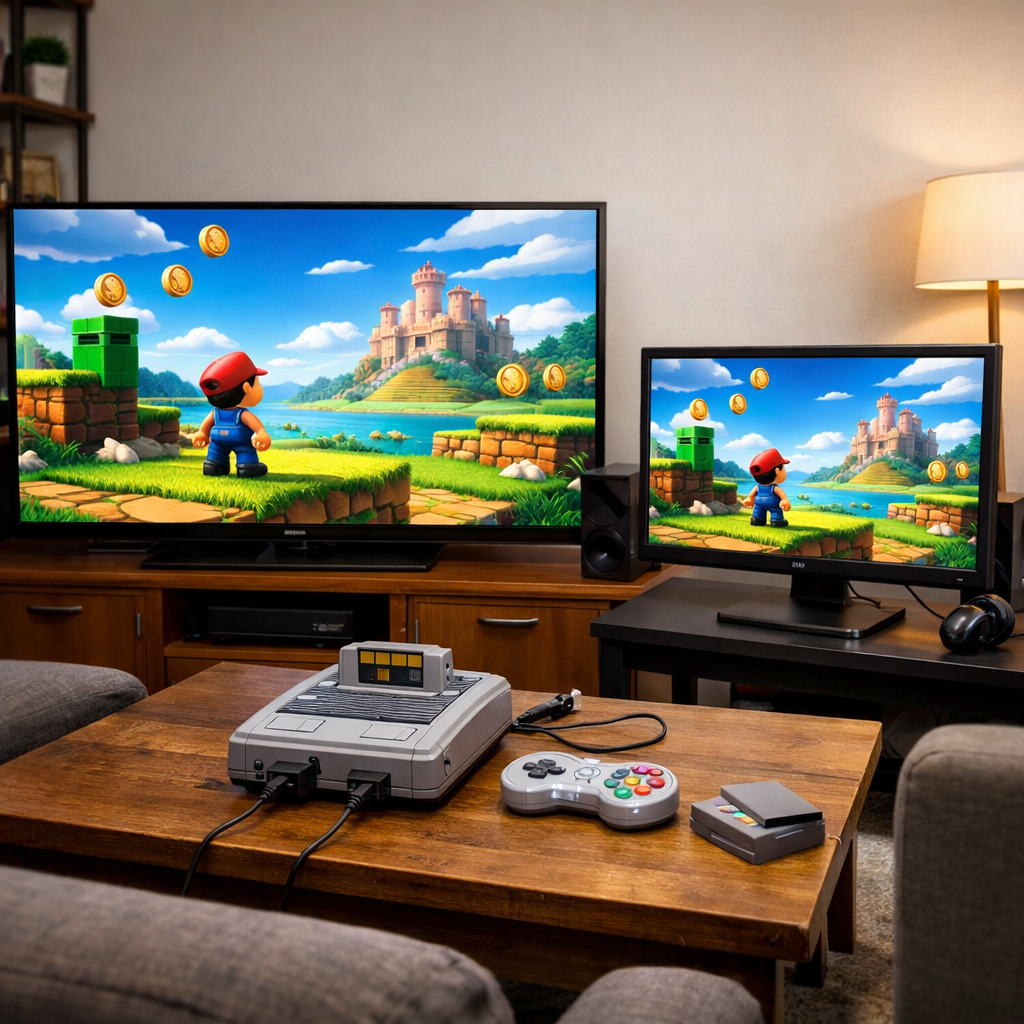
Monitor vs TV: Choosing 4K for Living Room Console Gaming
Modern consoles thrive on a big, sharp 4K screen—but should your living room run on a monitor or a TV? If you sit 7–10 feet back and share games, a 55–75-inch 4K TV with HDMI 2.1, 120 Hz, VRR, and Game Mode is the most immersive, living-room-friendly pick. If you sit closer or prize twitch responsiveness and text clarity for emulators and menus, a 32–43-inch 4K gaming monitor (or a smart monitor) gets you low lag, full chroma, and desktop-grade sharpness. This guide walks you through the specs that actually change how games feel—input lag, refresh rate, HDR—and helps you match screen size to couch distance while keeping retro hardware in mind. Retro Gaming Blog’s picks prioritize low lag and an authentic look for both new and classic systems.
How we game in the living room
Couch gaming prioritizes shared viewing, comfort at 6–10 feet, and mixed use (games, streaming, sports). TVs bring a smart OS, built-in apps, and remote-first convenience; most monitors don’t, unless they’re marketed as smart monitors. Desk setups favor close seating and high pixel density; living rooms demand larger screens and wider viewing angles for party play and story sessions. As sizing and features diverge—monitors skew compact and performance-first, TVs emphasize size and media features—your choice hinges on where you sit, who you play with, and how you balance responsiveness with cinematic scale, as also covered in MageXMonitor’s monitor‑vs‑TV guide (MageXMonitor’s monitor‑vs‑TV guide). Our guidance centers on couch distance, co‑op visibility, and retro compatibility.
Criteria that matter for 4K console play
Here’s a fast checklist to compare in-store or online:
- Input lag targets: under ~16 ms at 60 Hz; under ~8–10 ms at 120 Hz (in Game Mode).
- Refresh rate: 120 Hz minimum recommended; higher is better for motion clarity.
- VRR: HDMI 2.1 VRR or FreeSync for smoother, tear-free play.
- Panel type: OLED for perfect blacks and speed; mini‑LED LCD for high brightness and strong contrast.
- HDR brightness: look for real highlights and local dimming (not just “HDR compatible”).
- HDMI 2.1 ports: needed for 4K at 120 Hz and VRR; verify which ports support 2.1.
- Chroma handling: 4:4:4 preserves full color detail and razor‑sharp UI/text; 4:2:2/4:2:0 can soften edges.
4K (UHD) is 3840×2160 pixels—four times 1080p—so you can sit closer or go bigger without aliasing; TVs commonly run 60–120 Hz (some newer models hit 144 Hz), while monitors often span 60–240 Hz or more, per Wirecutter’s TV buying guide (Wirecutter’s TV buying guide). These are the thresholds we use in our recommendations.
Input lag and response time
Input lag is the delay between pressing a button and seeing the result; response time is how fast pixels change color, affecting motion blur. Aim for under ~16 ms at 60 Hz and under ~8–10 ms at 120 Hz on TVs by enabling Game Mode (or ALLM) to bypass heavy processing, as summarized by DisplayNinja (DisplayNinja on TV vs monitor for console gaming). Monitors frequently advertise 1–5 ms responses and lower lag, while TVs often sit in the 10–20 ms range, though Game Mode narrows the gap. Always check measured results from testing databases like RTINGS’ measured monitor tests (RTINGS’ measured monitor tests).
Refresh rate and VRR
VRR (variable refresh rate) syncs the display to the console’s changing frame rate to cut tearing and stutter. Xbox Series consoles support FreeSync and HDMI 2.1 VRR up to 120 Hz; PS5 supports HDMI 2.1 VRR. For living rooms, a 120 Hz TV reduces blur and improves smoothness even when games dip below 120 fps. Monitors commonly hit 144–240 Hz+, while most TVs land at 60/120 Hz with a few 144 Hz sets emerging.
Chroma subsampling and text clarity
Chroma subsampling reduces color information (e.g., 4:2:2 or 4:2:0) to save bandwidth; 4:4:4 keeps full color detail for crisp text and HUD elements. Monitors typically support full 4:4:4 and better color accuracy; many TVs process 4:2:2/4:2:0 by default, which can soften fine text or PC-style menus at close range. For couch-distance console UIs, 4:2:2 is usually fine; if you’ll browse, run emulators, or tweak settings on-screen, prioritize confirmed 4:4:4 (or a “PC mode”).
HDR brightness and contrast
OLED delivers inky blacks, accurate color, wide viewing angles, and ultra-fast response—great for dark-room gaming—at higher prices and with some care needed for static HUDs. Mini‑LED LCD uses thousands of tiny backlights and many local dimming zones to raise brightness and contrast for bright rooms, notes Consumer Reports’ TV buying guide (Consumer Reports’ TV buying guide). Some premium LCD TVs hit near 3,200‑nit HDR peaks, producing dazzling highlights in games, according to Wirecutter’s best TV picks (Wirecutter’s best TV picks).
Screen size and seating distance
Monitors typically range from ~27–32 inches (with a few 43-inch options), while TVs start around 40 inches and scale well beyond 75. From 7–9 feet, a 55–75-inch TV maximizes immersion without visible pixel grid; 32–43-inch monitors suit close seating or compact rooms. We tend to err toward the larger end for shared play.
| Seat distance | Recommended screen size | Typical use case |
|---|---|---|
| 4–6 ft | 32–43" monitor or smart monitor | Solo/competitive, desktop clarity, emulators |
| 6–8 ft | 48–65" TV (or 42–48" OLED for small rooms) | Mixed single/co‑op, balanced immersion |
| 8–10 ft | 65–77" TV | Cinematic single‑player, shared viewing |
| 10–12 ft | 75–85"+ TV | Big-room theater feel, sports and party play |
Connectivity and console compatibility
For 4K at 120 Hz and VRR on TVs, insist on HDMI 2.1 and check which ports support it—some sets only offer two 2.1 inputs. Monitors may rely on DisplayPort for high refresh and include HDMI 2.1 on newer models; verify whether you get HDMI/DP/USB‑C on monitors and HDMI/USB/Wi‑Fi/Bluetooth on TVs. Xbox supports FreeSync and HDMI 2.1 VRR; PS5 uses HDMI 2.1 VRR. Label your HDMI 2.1 ports to avoid confusion later.
Audio, ergonomics, and living room usability
TVs come with smart OS/app integration and generally better speakers; most monitors expect you to add audio, unless they’re smart monitors. Prioritize comfortable eye height, VESA mounting, and glare control—especially for OLED in bright rooms. For sound, a compact soundbar/AVR pairs well with TVs; for monitors, plan a headset or powered speakers.
Price, value, and long‑term reliability
Price realities: monitors run roughly $49–$2,000+, and TVs about $200–$3,000+ depending on size and tech, with TVs usually winning price‑per‑inch. A capable 4K gaming monitor often starts around $400, per PCMag’s best monitors roundup (PCMag’s best monitors roundup). Consider warranty length, panel uniformity, and potential OLED burn‑in over years of play; mini‑LED LCDs provide bright HDR with less burn‑in concern.
4K gaming monitor
A 4K gaming monitor is a small‑to‑medium screen tuned for high refresh, low input lag, and full chroma—ideal for close seating and precision play. Gaming monitors commonly support adaptive sync (G‑SYNC/FreeSync) and 60–240 Hz+ refresh, with tight motion and crisp UI.
Strengths for close seating and competitive play
- 1–5 ms response and 144–240 Hz+ options keep motion sharp and inputs snappy.
- Full 4:4:4 chroma preserves HUD text, emulator overlays, and retro pixel edges.
- Inputs like DisplayPort/USB‑C simplify mixed PC/console rigs.
Limitations for couch distance and shared viewing
- 27–32 inches (even 43) can feel undersized from 7–9 feet.
- Fewer smart features and weaker speakers reduce living‑room convenience.
- Some panels have narrower viewing angles for group play.
Ideal use cases in a living room
- Close‑seat nooks, small apartments, or desk‑to‑couch hybrids—especially 32–43" 4K 120 Hz smart monitors like, for example, LG’s MyView with webOS, spotlighted in WIRED’s best monitors guide (WIRED’s best monitors guide).
- Fighters, shooters, rhythm games where latency rules.
- Emulator/front‑end tinkerers who value text clarity and adaptive sync.
4K TV
A 4K TV is the default for couch immersion: larger screens, wide viewing angles, strong HDR, and an app-ready smart OS. Modern models add HDMI 2.1, 4K@120 Hz, VRR, and Game Mode across many price tiers.
Strengths for immersion and HDR cinema
- Size scales effortlessly for shared play and big‑screen storytelling.
- OLED offers deep blacks and instant pixel response; mini‑LED LCDs bring searing brightness and improved contrast.
- Some LCDs can reach near 3,200‑nit HDR peaks for dazzling highlights.
Limitations for latency and desktop‑style clarity
- TVs often trail monitors in response time; enable Game Mode or ALLM to minimize lag.
- Many sets process 4:2:2 or 4:2:0 chroma, softening fine text/UI compared with 4:4:4.
- Not every HDMI input is 2.1—double‑check before you buy.
Ideal use cases in a living room
- Traditional couch gaming: cinematic single‑player, co‑op, sports at 7–12 feet.
- Mixed media: built‑in streaming apps and movies without extra boxes.
- Premium HDR: OLED/QD‑OLED/mini‑LED with 4K@120 and VRR for PS5/Xbox.
Smart monitor hybrid
Smart monitors blend monitor ergonomics with TV convenience: 4K panels, often 120 Hz, plus built‑in streaming apps and a remote—great for small living rooms or multipurpose spaces.
Who should consider a smart monitor
- Apartment dwellers and multipurpose rooms where 32–43 inches fits best.
- Gamers who want monitor‑grade clarity/low lag plus a smart OS for streaming.
- People switching between console, PC, and media without a full TV.
Trade‑offs versus full TVs and pure monitors
- Versus TVs: better desktop clarity and potential 120 Hz; smaller size and lower HDR peaks.
- Versus monitors: built‑in apps/remote; sometimes fewer I/O or pro‑level calibration controls.
- Always confirm HDMI 2.1 and VRR support for consoles.
Side‑by‑side comparison at a glance
| Feature | 4K Gaming Monitor | 4K TV |
|---|---|---|
| Input lag | Very low (often <10 ms at 120 Hz) | Low in Game Mode (target <16 ms at 60 Hz; <8–10 ms at 120 Hz) |
| Response time | 1–5 ms typical | 10–20 ms typical (faster on OLED) |
| Refresh rate | 120–240 Hz+ common | 60/120 Hz common; some 144 Hz models |
| Screen size | ~27–43" | ~40–85"+ |
| HDR brightness/contrast | Moderate brightness; limited local dimming on many | Strong HDR; OLED contrast or bright mini‑LED peaks |
| Chroma | Full 4:4:4 clarity | Often 4:2:2/4:2:0; some support 4:4:4/PC mode |
| Smart features | Rare (except smart monitors) | Robust apps, voice, remote |
| Typical price | $400–$1,500 for capable 4K gaming models | $600–$3,000 depending on size/tech |
| Best use | Close seat, competitive, emulators | Couch immersion, shared play, mixed media |
Note: Input‑lag targets and the value of Game Mode/ALLM are drawn from DisplayNinja’s guidance.
Recommendations by player type
- Competitive or close‑seat solo: 32–43" 4K 120 Hz gaming monitor or smart monitor; prioritize 4:4:4, 120–240 Hz, and 1–5 ms response.
- Shared couch and cinematic: 55–75" 4K TV with HDMI 2.1, VRR, Game Mode, and strong HDR (OLED or bright mini‑LED).
- Mixed media small space: a 120 Hz smart monitor with streaming apps and HDMI 2.1.
Retro Gaming Blog perspective on classic consoles
We care about how modern 4K choices treat original hardware. Whether you collect, mod, or simply preserve the look and feel of classic Consoles and Games, your display and scaler chain matter for both latency and authenticity.
Original hardware, scalers, and 4K displays
A scaler converts older analog or low‑res signals to 4K with line‑doubling, deinterlacing, and low‑lag processing. Quality HDMI scalers/upscalers for NES/SNES/PS2 minimize blur and overscan; pair them with TV Game Mode to avoid added delay. For step‑by‑step hookups, see our guide to connecting a retro console to a modern TV (how to connect a retro console to a modern TV).
RGB, upscalers, and latency considerations
Prefer RGB/component where possible for cleaner signals. If your TV supports it, 4:4:4 or a “PC mode” can sharpen menus and emulator text. Keep input lag under ~16 ms at 60 Hz on classic consoles, and consult measurement databases like RTINGS for real‑world lag and motion performance.
Setup tips for best results
Follow these steps the day your screen arrives:
- Update firmware on the TV/monitor.
- Use certified Ultra High Speed HDMI cables.
- Plug consoles into HDMI 2.1 ports; label them.
- Enable Game Mode or ALLM; verify low‑lag status.
- Turn on VRR in both console and display menus.
- Disable motion interpolation and heavy post‑processing.
- Run your console’s HDR calibration and set black level correctly.
- Check chroma/PC mode for text‑heavy apps or emulators.
- Tame glare with placement or bias lighting; mind OLED logo dimming.
- For audio: configure eARC to a soundbar/AVR (TV) or connect speakers/headset (monitor).
Enabling Game Mode, ALLM, and VRR
- Turn on Game Mode or ALLM so latency drops automatically when a console is detected.
- Enable VRR on both console and display; Xbox supports FreeSync/HDMI 2.1 VRR, PS5 uses HDMI 2.1 VRR.
- Disable motion smoothing and reduce extra processing to prevent lag.
Correct HDMI 2.1 cables and ports
- Use Ultra High Speed HDMI cables for 4K@120 Hz and VRR; plug into labeled HDMI 2.1 ports.
- On monitors, confirm HDMI 2.1 or use DisplayPort (if supported) and set the console to 4K 120 Hz.
- If eARC/VRR causes audio hiccups, try other HDMI ports or another certified cable.
Calibrating HDR and reducing motion blur
- Run each console’s HDR calibration; pick accurate picture modes and verify black levels (limited vs full).
- A 120 Hz TV improves motion clarity; consider black‑frame insertion/clear motion sparingly to avoid flicker.
- On OLED, keep brightness sensible and enable logo dimming/screensavers to mitigate retention with static retro HUDs.
Frequently asked questions
Can PS5 and Xbox Series X do 4K at 120 Hz on a TV?
Yes. Many modern 4K TVs with HDMI 2.1 support 4K120 and VRR; Retro Gaming Blog recommends using the HDMI 2.1 port and enabling Game Mode/ALLM.
What input lag numbers should I look for at 60 Hz and 120 Hz?
Target under 16 ms at 60 Hz and under 8–10 ms at 120 Hz in Game Mode. Retro Gaming Blog suggests checking measured tests before buying.
Is OLED safe for gaming and retro menus in a living room?
Yes, with sensible settings. Retro Gaming Blog advises mixing content, enabling screen‑savers/logo dimming, and avoiding excessive static brightness.
Do I need 4:4:4 chroma for console gaming on a TV?
Not strictly at couch distance, but it sharpens text and UI. Retro Gaming Blog recommends enabling it (or PC mode) if you browse, emulate, or run PC apps.
What screen size fits a 7 to 9 foot couch distance?
A 55–75" 4K TV is the sweet spot. Retro Gaming Blog favors the larger end for shared viewing.