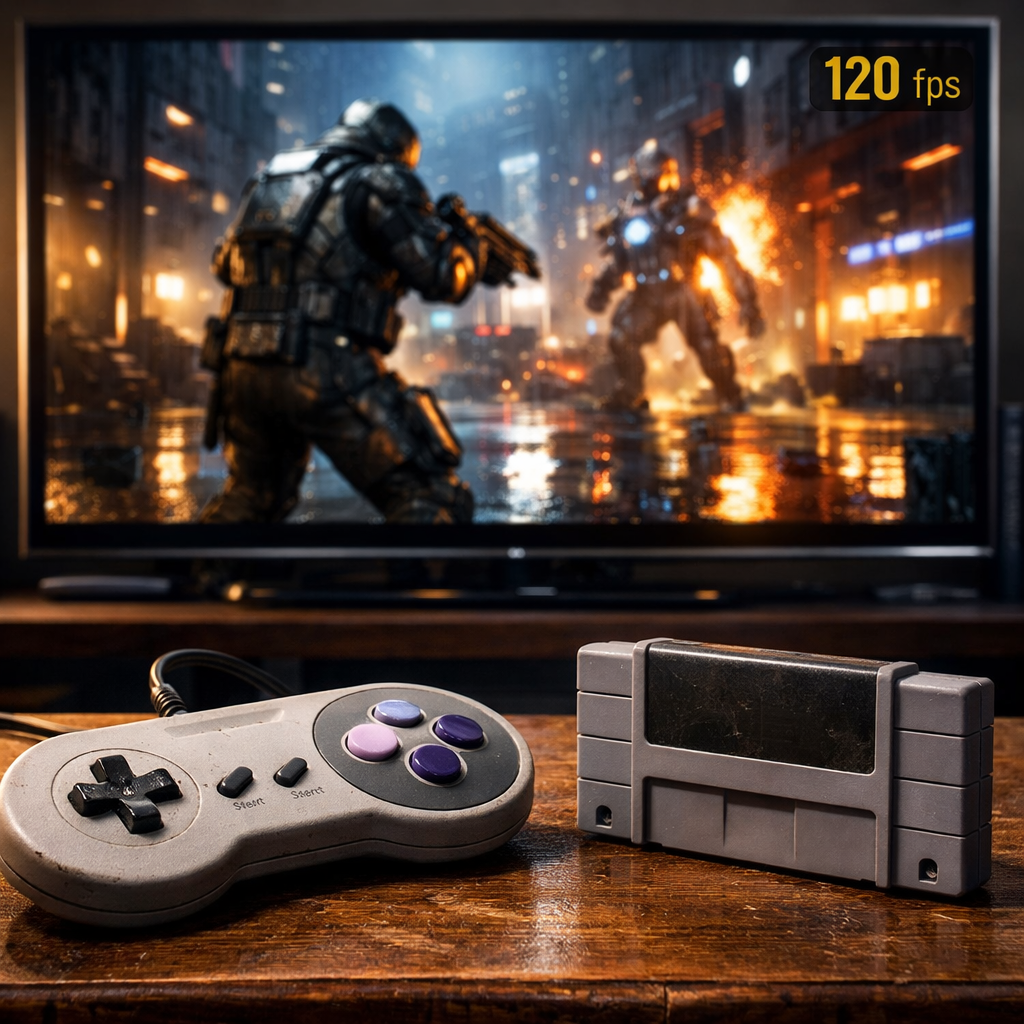
New Releases With Next‑Gen Features: 4K, Ray Tracing, 120fps
Next‑gen gaming means sharper images, more realistic lighting, and ultra‑smooth motion—but not always all at once. New releases increasingly ship with toggles for 4K resolution, hardware ray tracing, and 120fps support, plus software tools like DLSS, FSR, and XeSS that make these modes practical on more hardware. This guide explains what those features really deliver, what your PC/console and display need, and which current games showcase them best. We’ll cut through marketing, flag trade‑offs, and show you how to configure modes for the best balance of clarity, performance, and responsiveness—grounded in current hardware realities and testing know‑how from the enthusiast scene and outlets like Digital Foundry. At Retro Gaming Blog, that means pragmatic settings you can replicate—not hype.
What next‑gen features really mean
4K gaming is rendering at 3840×2160 pixels—four times the pixel count of 1080p—which significantly scales shading, texture bandwidth, and memory access, raising VRAM demands and often lowering fps without smart optimization or upscaling, as explained in GamerTech’s overview of 4K for gaming.
Hardware ray tracing is a GPU‑accelerated approach to lighting, shadows, and reflections that raises realism, but it carries substantial compute and memory costs. Most games enable selective effects and pair them with upscaling to keep frame rates in check, per the same GamerTech guide.
120fps/120Hz means the game renders 120 frames per second and your display refreshes at 120Hz, cutting motion blur and input latency. Hitting 4K at 120Hz typically requires HDMI 2.1 or DisplayPort with DSC and often benefits from VRR to smooth fluctuating frame times, as outlined by GamerTech.
Industry context matters: ongoing console refreshes are iterative, not revolutionary. Reporting has suggested a PS5 Pro could deliver roughly 45% more rasterization throughput and 2–3× faster ray tracing versus PS5—helpful uplift, but still a world of trade‑offs between 4K, RT, and high frame rates, per coverage aggregated by TweakTown.
A quick mode comparison to frame expectations:
| Mode | Pros | Cons | Typical use case |
|---|---|---|---|
| Native 4K | Maximum pixel‑level detail; clean UI/text | Highest GPU/VRAM load; lower fps | Slow‑paced or cinematic single‑player |
| 4K Upscaled (DLSS/FSR/XeSS) | Near‑native sharpness; big performance savings | Reconstruction artifacts possible; tuning required | Balanced 4K image with higher fps or RT |
| Performance (120fps) | Lowest latency; ultra‑smooth motion | Reduced resolution/effects; RT often disabled or limited | Competitive shooters, racing, fast action |
The hardware reality behind 4K, ray tracing, and 120fps
Rendering at 4K pushes 4× the pixels of 1080p, so shading work, texture reads, and memory bandwidth all scale accordingly. Sustained 4K with ray tracing at 60–120fps generally demands flagship GPUs, ample VRAM (16–24GB), and fast NVMe storage to support modern streaming and DirectStorage‑class IO pipelines, as summarized by GamerTech.
Baseline recommendations by target mode:
- Native 4K with ray tracing at 60fps: 16GB+ VRAM (24GB ideal), high memory bandwidth, and a strong CPU for BVH builds and RT scheduling, per GamerTech’s 4K performance guidance.
- 4K at 120fps: absolute top‑end GPUs, or lean on upscaling and frame generation to reach that refresh target, again aligning with GamerTech’s feature breakdown.
Real‑world bottlenecks still bite. CPU‑heavy hubs or dense crowd scenes can cap frame rates even on top GPUs—Digital Foundry‑tracked examples include modern open worlds where busy towns bottleneck high‑end cards—echoed in roundups curated by TweakTown’s March 2024 archive. We prioritize frame‑time stability and input feel over chasing the biggest number.
Smart software that makes next‑gen possible
Upscaling renders at a lower internal resolution (say, 1440p) and reconstructs to 4K, cutting GPU load while preserving much of the scene’s sharpness. DLSS, FSR, and XeSS are common solutions and form the backbone of many “4K” modes today, per GamerTech.
Frame generation interpolates in‑between frames to raise effective fps. It improves perceived smoothness but can add artifacts and some latency; a 2026 analysis at PC Gamer argues the tech still needs polish around motion quality, UI ghosting, and responsiveness.
Feature gating is real. Advanced DLSS 4 features are tied to RTX 50‑series GPUs, and FSR 4 acceleration targets RDNA 4, shaping platform‑specific experiences, as discussed in GamerTech’s coverage of modern upscalers.
For best results:
- Enable upscaling first (Quality/Auto), then layer in selective RT effects.
- Test frame generation per game, checking latency and ghost trails on UI and fine foliage.
- Prefer quality‑leaning presets for clarity; step down only if you need more headroom.
At Retro Gaming Blog, we default to quality‑mode upscaling, selective RT, then test frame generation only if responsiveness holds up.
Display choices that unlock 4K at 120Hz
HDMI 2.1 and DisplayPort with DSC are the link standards that carry 4K at 120Hz. Ensure your panel truly supports 120Hz at 4K, the correct bit depth/chroma, and that DSC is active where needed, per GamerTech’s signal path overview.
VRR synchronizes refresh to the GPU’s output to reduce tearing and stutter, especially critical for 40–120fps swings in RT‑heavy scenes.
A quick port capability snapshot:
- HDMI 2.0b: up to 4K60; not suitable for 4K120.
- HDMI 2.1: 4K120 with VRR on supported TVs/monitors; use certified Ultra High Speed cables.
- DisplayPort 1.4: 4K120 with DSC; without DSC, heavy compromises.
- DisplayPort 2.x: even higher headroom (e.g., 4K240) on new displays.
What to check on your TV/monitor:
- Confirm a port that supports 4K120 and VRR, and use the correct cable type.
- Update firmware; some sets hide 120Hz in “Enhanced” or “Game” input modes.
- On consoles/PC, enable 120Hz in system settings and select the game’s performance mode, per GamerTech’s display checklist.
Zooming out, the broader 4K ecosystem keeps maturing: Consumer Reports notes NextGen TV (ATSC 3.0) now reaches more than three‑quarters of U.S. markets, though most broadcasts remain 1080p HDR—useful context if you also watch OTA content on your gaming display.
New releases showcasing next‑gen modes
Momentum is cross‑device: even phones now offer 120fps options—PUBG Mobile’s 120fps mode runs on Samsung’s Galaxy S24 Ultra and S23 Ultra, as aggregated in TweakTown’s March 2024 coverage.
Recent examples worth testing:
- Cyberpunk 2077 (PC/PS5/XSX): heavy RT, DLSS/FSR/XeSS on PC, DLSS 3/4 features gated to the latest RTX hardware; consoles offer distinct performance vs quality modes with reconstruction, tracked extensively by Digital Foundry.
- Alan Wake 2 (PC/PS5/XSX): ray‑traced pipelines lean on DLSS/FSR; PC users see the biggest gains from upscaling and frame generation to stabilize 60fps, per DF’s analyses.
- Call of Duty: Modern Warfare III/Warzone (PC/PS5/XSX): robust 120Hz modes on consoles; on PC, widespread upscaler support and fine‑grained performance toggles.
- Fortnite (All): 120fps modes on current consoles; on PC, Nanite/Lumen with upscaling options for RT‑style lighting and competitive performance.
- Forza Motorsport and Halo Infinite (Xbox Series X|S): performance modes up to 120fps, with resolution and effect trade‑offs clearly labeled in menus.
Platform notes: rumors point to PS5 Pro uplift in ray tracing throughput, while Microsoft tooling aims to reduce RT LOD memory footprint—helping 8GB GPUs via smarter level‑of‑detail and streaming strategies—both trends tracked in TweakTown’s archive.
How devs balance fidelity and performance
Studios craft hybrid settings to fit mainstream hardware:
- Selective ray tracing (shadows or reflections only), reduced RT LODs, and internal resolution targets paired with upscalers.
- Engine‑level RT LOD and memory budgeting to trim VRAM use, aiding midrange and 8GB cards—an area Microsoft and partners continue to refine, per TweakTown’s reporting.
When comparing modes, try:
- Native 4K without RT vs upscaled 4K with RT on.
- Quality 60fps vs performance 120fps, watching for latency, ghosting, and texture detail.
Callout: frame generation is accelerating adoption but still needs visual and latency polish, as PC Gamer argues.
Retro Gaming Blog’s lens on next‑gen and classic design
High frame rate feels familiar to retro fans: 120fps on modern low‑persistence panels echoes the motion clarity of CRTs many of us grew up with.
Ray‑traced lighting is the natural evolution of the baked lightmaps and clever sprite tricks from the 16‑/32‑bit era, trading illusion for simulation—when performance budgets allow.
We’d love your stories: what was your first “true” 60fps experience, and how does a 120Hz setup compare? Dive deeper in our Modding and Retro Culture hubs and share your testing notes.
What to check before you buy or play
- Verify HDMI 2.1 or DisplayPort with 4K120 and VRR on your display, and use certified cables, per GamerTech.
- Update GPU/console firmware; enable 120Hz in system settings.
- In‑game, pick Quality/Auto upscaling first, then toggle selective RT.
- Check VRAM headroom (16–24GB ideal for native 4K with RT), as outlined by GamerTech.
- Trial frame generation; assess input lag and artifacts against your tolerance, per PC Gamer’s cautions.
This checklist mirrors how we approach test builds at Retro Gaming Blog.
Simple performance log template:
- Mode preset and upscaler setting
- Min/avg/max fps and frame‑time notes
- VRAM usage peak
- Artifacts observed (ghosting, shimmer)
- Final settings chosen and why
Consoles
PS5 and Xbox Series consoles typically offer clear Quality vs Performance toggles. 120Hz modes reduce resolution and effects (often disabling or slimming RT) to stabilize frame times, while 60fps “quality” modes lean on reconstruction to present 4K‑class images.
A rumored PS5 Pro could bring roughly 45% raster uplift and 2–3× ray tracing throughput, but real‑world gains will remain scenario‑dependent, especially in CPU‑limited spaces, per TweakTown’s roundups.
Accessory note: PS VR2’s PC support opens doors to NVIDIA‑class upscalers and broader GPU compatibility, another TweakTown‑tracked development.
Console tips:
- Enable 120Hz and VRR at the system level before launching games.
- Use performance mode for competitive play; try quality mode with selective RT for single‑player.
Games
Pick modes to fit the genre and your priorities:
- Competitive shooters and racers: prioritize 120fps performance modes for response and clarity of motion.
- Single‑player cinematic titles: enable selective RT and pair with upscaling for 60fps targets that still look superb.
Experiment with internal resolution—1440p reconstructed to 4K often looks near‑native with major fps savings, a technique grounded in GamerTech’s explainer on upscaling.
Watch for CPU‑bound scenarios like dense crowds or streaming‑heavy hubs; even elite GPUs can dip. Adjust crowd density/NPC counts and background task limits, a pattern observed in coverage aggregated by TweakTown.
Modding
Community tools can bring next‑gen flavor to older titles:
- Upscaler injection (DLSS/FSR/XeSS) mods and config tweaks to cap ray‑traced effects or swap heavy shaders.
- Right‑sized texture packs for your VRAM budget, plus LOD tuning to reduce traversal stutter.
Preservation meets performance: with modern rigs, emulators and PC ports can drive classics well beyond 4K60, as Digital Foundry’s analyses of retro upscaling and emulation frequently demonstrate.
Caution: always benchmark after adding high‑res textures or RT reshades and keep an eye on VRAM to avoid hitching.
Collecting
Physical 4K enthusiasm mirrors game remasters: new 4K UHD discs keep rolling out, with calendars at IGN and High‑Def Digest tracking release dates, and expert picks at TechRadar highlighting reference‑grade transfers for evaluating HDR and motion.
Buying tips:
- If you care about gaming and film, favor displays with 4K120 and VRR, and check for an ATSC 3.0 tuner if over‑the‑air content matters, per Consumer Reports.
- Keep a short list of “reference scenes” to test tone‑mapping, black floor, and motion handling—the same skills help judge game quality vs performance modes.
Retro Culture
Help the community document and preserve next‑gen settings like the old magazine tech tips we loved:
- Share side‑by‑side captures, frame‑time graphs, and settings screenshots.
- Speedrunners: tell us how 120fps and VRR affect timing, fairness, and category rules.
Retro Gaming Blog’s pillars—Consoles, Games, Modding, Collecting, Retro Culture—are built on shared knowledge. Your testing makes the scene better.
Frequently asked questions
Can today’s hardware do native 4K with ray tracing at 120fps?
Only elite GPUs and the very latest consoles can approach it, and most still rely on upscaling and selective RT. At Retro Gaming Blog, we treat native 4K with full RT at 120fps as a rarity reserved for lighter titles.
Do I need HDMI 2.1 or DisplayPort for 4K at 120Hz?
Yes—use HDMI 2.1 or DisplayPort with DSC and verify your panel does 4K120 with VRR. At Retro Gaming Blog, we also verify 120Hz/VRR in system settings and use certified cables.
How do DLSS, FSR, and frame generation affect input lag and image clarity?
Upscaling preserves clarity while lowering GPU load, while frame generation boosts smoothness but can add artifacts and some latency. At Retro Gaming Blog, we test per game: start with upscaling, then add frame gen only if responsiveness stays acceptable.
Is 1440p with higher settings better than 4K for most games?
For many, 1440p with higher settings or 120fps modes is the sweet spot. Retro Gaming Blog generally recommends 4K for cinematic play and 1440p for smoother, more consistent action.
What storage and VRAM matter for smooth next‑gen performance?
Target 16–24GB of VRAM for demanding 4K+RT and a fast NVMe SSD for steady streaming. That’s the baseline we suggest at Retro Gaming Blog to stabilize frame times and reduce texture pop‑in.
Share your setup and testing tips
We want to feature your best‑looking, best‑performing settings. Share short clips, screenshots, and side‑by‑side comparisons (quality vs performance) with your GPU/VRAM, display, and upscaler notes so others can replicate.
Prompt: record a 5‑minute walkthrough showing native 4K vs upscaled 4K with RT on/off, with an fps/frametime overlay. Send us your findings and mini‑guides—we’ll spotlight standout tests on Retro Gaming Blog.