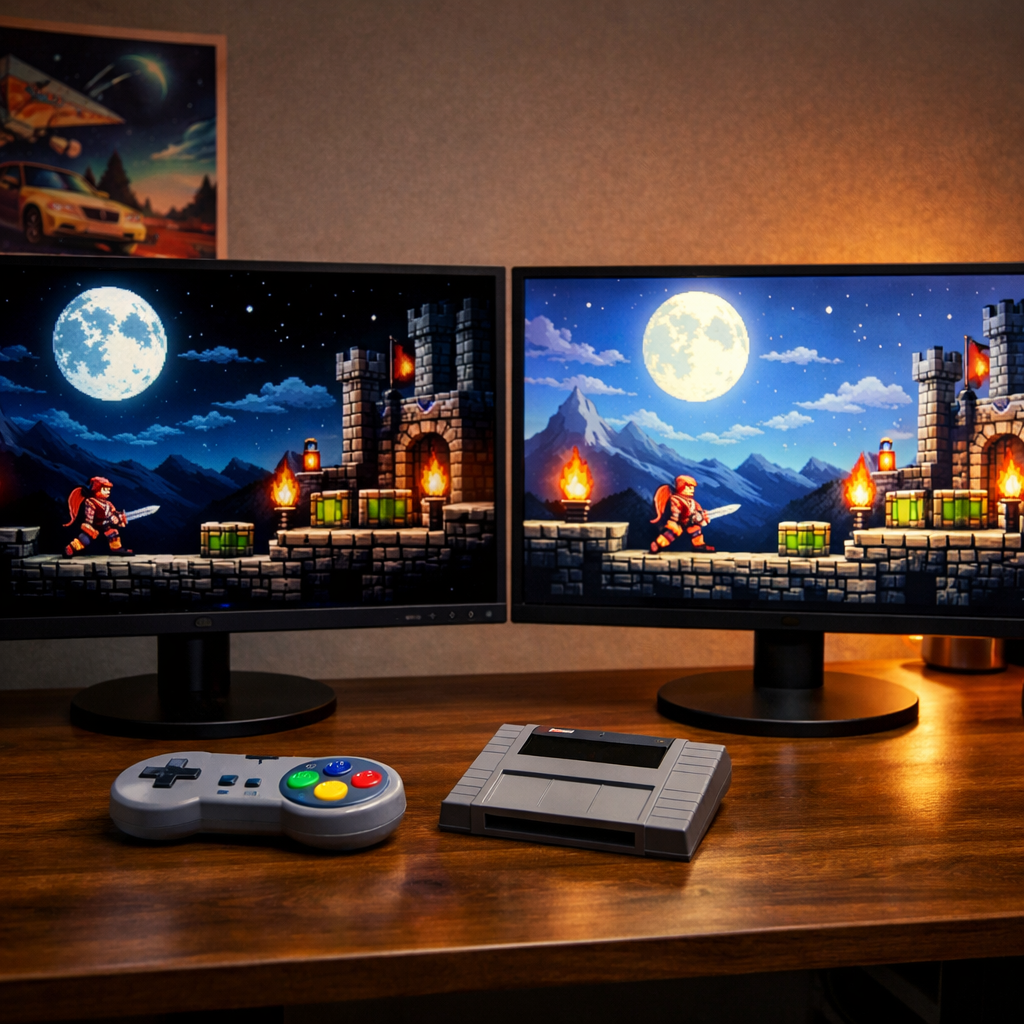
OLED vs IPS: Which 4K Monitor Suits Your Console Best?
Choosing between OLED and IPS for a 4K console monitor comes down to where you play, what you play, and how you sit. In dim rooms and story-driven games, OLED’s pixel-level blacks deliver breathtaking HDR and motion; in bright spaces or mixed work/play, IPS (including IPS Black) brings higher sustained brightness, steady color, and durability. If you’re chasing the best affordable 4K monitor for console gaming, look for 4K 120Hz HDMI 2.1, VRR, and low input lag first, then match panel type to your room and habits. Below, we break down the trade-offs, console features, and use-case picks so you can confidently choose the best 4K monitor for PS5 or Xbox—with a retro-friendly lens.
How to choose a 4K monitor for console use
Use this quick, practical flow. Retro Gaming Blog readers should also weigh clean scaling options for classic collections and remasters.
- Define your room and distance
- Dim, controlled light and close seating: OLED shines for cinematic contrast and motion.
- Bright rooms or variable light: IPS/IPS Black sustain higher brightness and color stability.
- Seating: Desk (2–3 ft), hybrid (3–5 ft), couch (5–7 ft) will influence size.
- Choose panel type based on priorities
- Prefer contrast, deep blacks, and motion purity? OLED/QD‑OLED.
- Prefer brightness, uniformity, and durability? Fast IPS/IPS Black.
- Confirm console-ready features
- 4K 120Hz via HDMI 2.1 on at least two ports, VRR for consoles (with ALLM), and HDR10 support. Ensure low input lag modes and clean scaling.
Console-ready checklist:
- 4K 120Hz HDMI 2.1
- VRR and ALLM support
- HDR10 with sensible tone mapping
- Low input lag game mode
- Panel type: OLED, QD‑OLED, Fast IPS, IPS Black
- Size matched to seating distance
- Burn‑in considerations (for OLED)
- Warranty coverage, ideally with burn‑in protection
Keywords to know: 4K 120Hz HDMI 2.1, VRR for consoles, OLED vs IPS for gaming.
What 4K means for modern and retro consoles
4K (3840×2160) packs four times the pixels of 1080p. The extra density improves clarity, reduces aliasing, and makes UI text more legible—especially on larger screens or closer seating. PS5 and Xbox Series X can output up to 4K 120Hz with HDR, though many games use dynamic resolution or upscaling to hit frame-rate targets.
Retro angle: Classic consoles output 240p/480i/480p. Modern collections and mini consoles upscale to 4K, and they look best with accurate scaling options, clean scanline/CRT filters, and low-lag modes that preserve sprite edges without smearing. For original hardware, see our retro-connection guide for analog sources: https://retrogamingblog.com/how-to-connect-a-retro-console-to-a-modern-tv/
OLED vs IPS at a glance
OLED pixels can switch off completely for true blacks and effectively infinite contrast, while IPS typically delivers higher sustained brightness and more uniform color across the panel according to Newhaven Display’s IPS vs OLED guide: https://newhavendisplay.com/blog/ips-vs-oled-displays-key-differences-explained/
| Attribute | OLED/QD‑OLED | Fast IPS/IPS Black |
|---|---|---|
| Blacks/Contrast | Pixel-level blacks; “infinite” contrast feel | Backlit; higher black floor; IPS Black narrows the gap |
| Brightness | Lower sustained brightness; improving HDR peaks | Higher sustained brightness; better for bright rooms |
| Motion | Near-instant pixel response; minimal ghosting | Fast, but can show some ghosting/overshoot |
| Color Accuracy | Vivid, wide gamut; increasingly accurate out of the box | Very consistent color and uniformity; easy to calibrate |
| Burn‑in Risk | Possible with static elements; needs care features | Low risk; generally longer operational life |
| Text/UI Clarity | Non‑RGB layouts can fringe; newer RGB‑stripe models help | Sharp RGB stripe; strong text clarity |
| Price/Value | Premium pricing | Often better value and wider size options |
| Warranty Norms | Check for explicit burn‑in coverage | Standard coverage more common |
Verdicts:
- OLED/QD‑OLED: Best cinematic contrast and motion; manage burn‑in risk.
- Fast IPS/IPS Black: Brighter, consistent color, durable, often better value.
Contrast and black levels
Contrast ratio compares the brightest white to the darkest black a display can produce. Higher contrast yields deeper blacks and more visible detail in shadows and highlights, giving images greater perceived depth and realism. It especially elevates HDR scenes and dim-room gaming where subtle tones matter.
OLED’s self-emissive pixels achieve true blacks and “infinite”-seeming contrast; IPS relies on a backlight, so black levels sit higher and can lift in dark scenes (see Newhaven Display’s overview above and Tom’s Hardware’s OLED roundup: https://www.tomshardware.com/monitors/gaming-monitors/best-oled-gaming-monitors). IPS Black improves native contrast to roughly 2000:1—visibly better than standard IPS, though still short of OLED’s per‑pixel control—per PCMag’s monitor guide: https://www.pcmag.com/picks/the-best-computer-monitors
Color accuracy and viewing consistency
If you edit photos/video and game on the same screen, IPS panels typically offer flatter, more uniform color and are straightforward to calibrate, while modern OLEDs are vivid and increasingly accurate from factory. For IPS, enable any built-in sRGB/DCI‑P3 modes or load an ICC profile; on consoles, choose the appropriate color format (RGB or YCbCr 4:2:2) to avoid clipping and preserve gradient detail. For wide-gamut needs, verify DCI‑P3 coverage and consider IPS Black for a contrast boost without giving up IPS consistency.
Brightness and meaningful HDR
In bright rooms, sustained brightness matters more than brief peaks. IPS monitors generally sustain higher brightness, making HDR highlights and midtones easier to see under ambient light (as noted in Newhaven’s comparison above). OLED brightness has surged: recent models measure around 400 nits in SDR with HDR peaks reaching roughly 1000–1300 nits in testing, per Tom’s Hardware’s OLED monitor roundup: https://www.tomshardware.com/monitors/gaming-monitors/best-oled-gaming-monitors
Focus on:
- Sustained HDR brightness and ABL (how aggressively the display dims on large bright scenes).
- Tone mapping controls that balance highlight detail with midtones.
- Good anti‑reflective coatings, which can improve perceived brightness and black levels in daylight.
Motion clarity, response times, and input lag
OLED excels in motion thanks to near‑instant pixel transitions (you can see ~0.1ms examples in this response-time demo: https://www.youtube.com/watch?v=_jGtEqkenBg), which minimizes ghosting and smearing. Fast IPS transitions around ~1.5ms are very good but can still show trace ghosting or overdrive artifacts. Current OLED gaming panels also pair ultra‑fast response with very high refresh capabilities, further improving clarity in 120Hz modes.
Response time measures how quickly a pixel changes from one color to another. Lower times reduce blur and ghost trails during fast motion, preserving texture and fine detail in action scenes. It’s different from input lag, which is the delay between your button press and the on‑screen response.
Burn in risk and longevity
OLED displays carry a burn‑in/retention risk from static UI and long, bright sessions, while IPS is far less prone and typically enjoys longer operational life under mixed use. Mitigation is straightforward: enable pixel shifting, logo dimming, and screen savers; vary content; avoid marathon sessions with static HUDs at maximum brightness; and look for models with dedicated care features and warranties. Notably, some lines include “OLED Care” toolsets and up to 3‑year burn‑in coverage, as reported in TFTCentral’s coverage of MSI’s 2026 OLEDs: https://tftcentral.co.uk/articles/all-the-latest-awesome-2026-monitors-from-msi-at-ces-2026
Text and UI clarity for mixed use
Many OLED monitors use WOLED or QD‑OLED subpixel layouts that aren’t standard RGB stripes, which can produce mild color fringing on fine text. Newer RGB‑stripe OLEDs shown at CES aim to improve text sharpness for desktop use, according to Ars Technica’s CES monitor roundup: https://arstechnica.com/gadgets/2026/01/the-most-fascinating-monitors-at-ces-2026/ MSI’s latest QD‑OLED generation adds an RGB‑stripe layout, DarkArmor film to deepen blacks in lighted rooms, and a 1300‑nit peak spec—features designed to tackle both text clarity and ambient light.
Guidance:
- If you type or read a lot, prioritize IPS or RGB‑stripe OLED.
- On Windows, tune ClearType/subpixel rendering and sharpness.
- Keep scaling at clean integer steps where possible for crisp UI.
Connectivity for consoles
Mini‑checklist:
- HDMI 2.1 bandwidth for 4K 120Hz
- VRR range that reliably covers ~40–120Hz
- ALLM support (auto game mode)
- HDR10 compatibility
- eARC is not required on a monitor
- Console-specific toggles and info overlay to confirm modes
Variable Refresh Rate (VRR) synchronizes a display’s refresh timing with the console’s frame output. By matching frame delivery, VRR eliminates tearing and reduces judder, keeping motion smooth during frame‑rate swings. It’s especially helpful in demanding scenes where performance dips below a steady 60 or 120 frames per second.
HDMI 2.1 and 4K 120Hz
Confirm native 4K 120Hz over HDMI 2.1 on at least two ports. Check the spec sheet for chroma handling (4:4:4 vs 4:2:2) and whether DSC is used. Use certified Ultra High Speed HDMI cables. Some monitors limit HDMI 2.1 features—verify via the EDID/“Information” panel that 4K 120Hz and HDR run together.
VRR, ALLM, and console settings
- Enable VRR and ALLM in the monitor’s OSD first, then on your PS5/Xbox.
- Run the console’s HDR calibration tool until highlight and shadow detail are just visible.
- Verify the monitor’s info overlay shows 4K, 60–120Hz, and HDR active.
- Note the VRR range and whether low‑frame‑rate compensation covers dips below 48Hz.
Screen size, PPI, and viewing distance
Choose size by seating distance so 4K’s detail is visible without eye strain.
| Screen size | Ideal distance |
|---|---|
| 27–32 in | 2–3 ft (desk) |
| 32–42 in | 3–5 ft (hybrid) |
| 42–48 in | 5–7 ft (couch) |
Pixels per inch (PPI) measures pixel density. Higher PPI shows finer detail and sharper text at the same distance. As screen size increases at a fixed 4K resolution, PPI drops—so you may need to sit farther back to avoid visible pixel structure and maintain comfortable clarity.
Use cases and recommendations
- Cinematic/contrast-first: OLED or QD‑OLED
- Bright rooms/mixed lighting: Fast IPS or IPS Black
- Productivity + gaming: IPS or RGB‑stripe OLED/QD‑OLED
- Retro compilations/long static HUDs: IPS
Cinematic single player in dim rooms
Pick OLED/QD‑OLED for the most dramatic black levels and dynamic range; the per‑pixel control simply looks “filmic” in HDR games. Prioritize HDMI 2.1, VRR, and 4K 120Hz, plus granular HDR tone mapping. Enable pixel‑care tools and moderate HUD brightness to mitigate burn‑in risk.
Bright room or shared living space
Choose high‑brightness IPS or IPS Black for sustained luminance and consistent color that fights glare. If you prefer OLED here, look for strong anti‑reflective coatings and new solutions like DarkArmor‑type films that deepen blacks in ambient light while avoiding tint.
Mixed gaming and productivity
For frequent text work, Fast IPS/IPS Black offers crisp RGB text and reliable color. If you want OLED’s contrast, choose an RGB‑stripe OLED/QD‑OLED to reduce fringing. Nice-to-have features: KVM, USB‑C DP Alt Mode/power, two HDMI 2.1 ports, and a solid 40–120Hz VRR window.
Retro collections and classic consoles
IPS minimizes burn‑in risk during long sessions with static score bars, timers, and CRT-style overlays. Enable integer scaling and low‑lag modes for sharp pixels and responsive play. For original hardware and upscalers, see our retro-connection guide: https://retrogamingblog.com/how-to-connect-a-retro-console-to-a-modern-tv/
Panel options explained
- OLED/QD‑OLED: Best blacks and motion; watch brightness and burn‑in. Best for: cinematic HDR.
- Fast IPS: Bright, fast, consistent color; excellent value. Best for: bright rooms and hybrid use.
- IPS Black: Adds deeper blacks (~2000:1) without losing IPS strengths. Best for: contrast‑boosted IPS.
- Mini LED (IPS or VA): High HDR punch without OLED burn‑in. Best for: bright rooms and HDR impact.
OLED, WOLED, and QD OLED
Organic Light‑Emitting Diode panels are self‑emissive, so each pixel creates its own light. That enables perfect blacks, ultra‑high contrast, and extremely fast response times. Trade‑offs include lower sustained brightness in bright rooms and the potential for image retention with static UI elements. QD‑OLED and newer RGB‑stripe layouts improve color volume and text clarity.
Fast IPS and IPS Black
Fast IPS is tuned for quicker pixel transitions while retaining IPS color consistency, making it a versatile gaming/work choice. IPS Black is an IPS subtype with higher native contrast (around 2000:1) to deepen blacks, while keeping IPS strengths like viewing angles and uniformity.
Where Mini LED fits
Mini LED uses thousands of tiny LEDs in many local dimming zones behind an LCD. It boosts brightness and HDR impact with better contrast than edge‑lit LCDs, though some blooming can appear around bright objects on dark backgrounds compared to OLED’s per‑pixel control. It’s a strong compromise for bright rooms and HDR without burn‑in worries.
Price and value considerations
IPS models usually deliver better value and broader size options, while OLED/QD‑OLED commands a premium. Power use differs: OLED can draw less on darker scenes and more on bright full‑screen content, whereas IPS is steadier. Prioritize warranties—seek explicit burn‑in coverage for OLED. Simple budget ladder: entry IPS (27–32 in) → IPS Black/Fast IPS midrange → OLED/QD‑OLED premium.
Our take for Retro Gaming Blog readers
For cinematic single‑player and late‑night sessions, OLED/QD‑OLED is the most transformative upgrade you can make. For bright rooms, long retro marathons, and mixed work/play, IPS/IPS Black remains the pragmatic pick. Preserve your classics with stable brightness, mindful HUDs, and clean scaling—and share your setups, tips, and favorite retro memories with the community below.
Frequently asked questions
Is OLED burn in still a concern for console gaming?
It’s rarer than before but still possible with static HUDs or long, bright sessions. Retro Gaming Blog recommends using built‑in pixel care, varying content, and choosing models with burn‑in coverage.
Do I need 120Hz for PS5 or Xbox Series X at 4K?
Not for every game, but 4K 120Hz via HDMI 2.1 future‑proofs your setup and makes fast titles smoother. Retro Gaming Blog suggests prioritizing 120Hz if you play racers and shooters.
What size 4K monitor works best for couch distance?
At 5–7 feet, 42–48 inches balances immersion and readability; at 3–5 feet, 32–42 inches fits well. Use the distance table above as a quick guide.
How do I set up HDR correctly on my console and monitor?
Enable HDR on both, run your console’s HDR calibration, pick a monitor HDR mode that preserves detail, and confirm the info panel shows 4K 60–120Hz with HDR active. Our tips above cover the key checks most setups need.
Is a monitor or a TV better for classic game compilations?
A low‑lag monitor with clean scaling looks excellent, while TVs win on size for couch play. Retro Gaming Blog leans monitor for latency and clarity, and TV for sheer screen real estate.