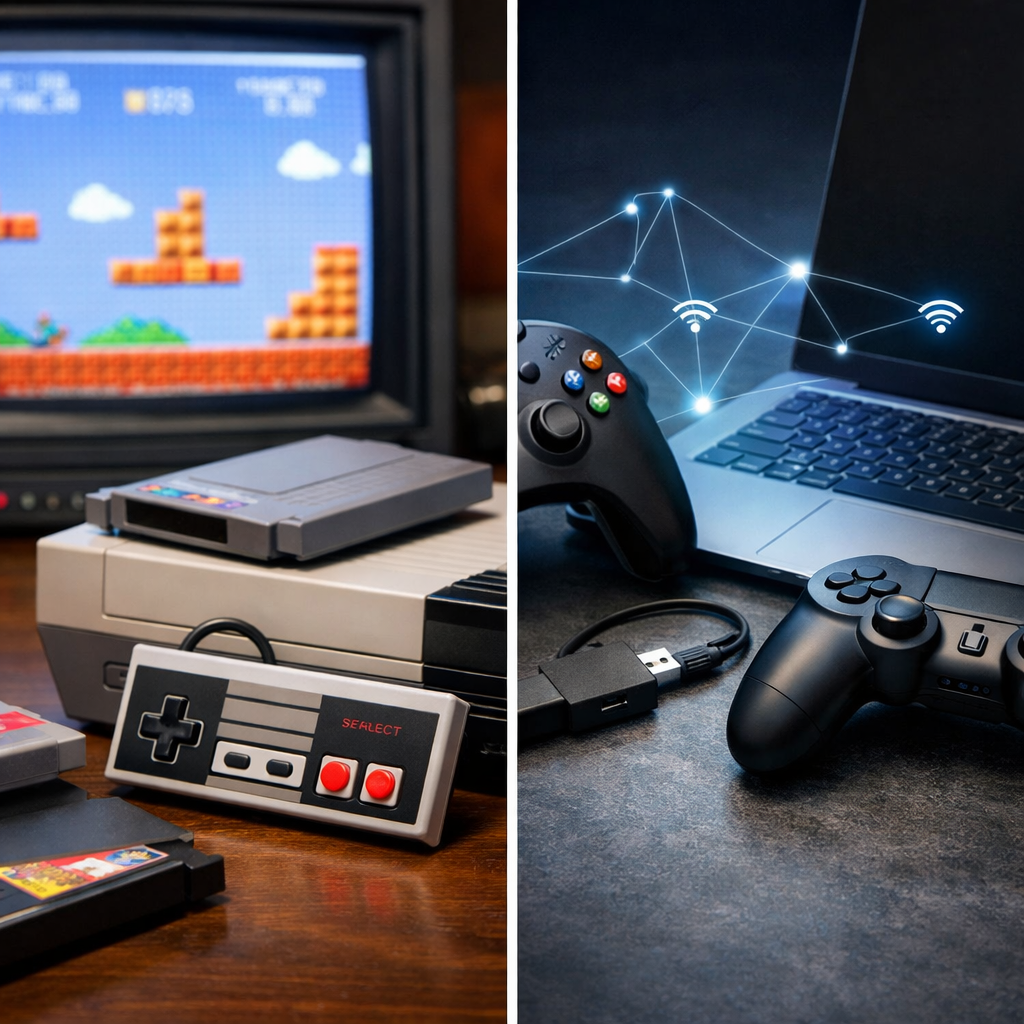
Struggling to Play Together? Cross-Platform Gaming Basics for Retro Gamers
Cross-platform play used to be a pipe dream for retro fans juggling PCs, handhelds, phones, and living‑room consoles. Today, with smarter engines, unified backends, and cloud saves, you can keep a group playing together across wildly different devices. This guide from Retro Gaming Blog explains what “cross‑platform” really means, how it differs from cross‑play and cross‑save, and how to set up stable, fair sessions for classics and retro‑style ports. We’ll lean on the checklists in this guide, practical tools (RetroArch netplay, Batocera, Godot/Unity), and proven workflows, plus point you to our rankings, hardware guides, and mobile/cross‑platform accessory picks so your mixed‑device crew can hit Start without the usual friction.
What is cross-platform gaming
“Cross-platform gaming” means people can meaningfully play the same game together across PCs, consoles, mobile, and the web through a shared backend, unified identity, and synchronized gameplay. A single codebase or server layer abstracts device differences, keeps features consistent, and aligns updates so players meet in the same world regardless of hardware. See a complete industry view in this cross‑platform development guide (SCAND). Retro Gaming Blog approaches this with a retro‑first lens—prioritizing timing, inputs, and parity that respect classic experiences.
A quick example: Minecraft spans PC, consoles, and mobile, showing how a unified backend, cross‑progression, and adaptive performance let friends join the same world even when devices vary in power or input style.
Cross-play vs cross-platform vs cross-save
Cross-play
Players on different hardware (for example, PC and console) join the same session via a shared server/identity layer. Availability varies by game and platform; some pairings are limited or opt‑in, and competitive pools may be segmented to protect balance. See adoption patterns in Naavik’s overview of the future of cross‑platform gaming.
Cross-platform development
“Build once, ship many” from a shared codebase to Windows, consoles, mobile, and web, minimizing rewrites and streamlining updates, testing, and content parity. Toolchains abstract platform specifics, while platform SDK steps still surface for features like achievements, commerce, and controller certification. See this complete guide to cross‑platform development (SCAND).
Cross-save/cross-progression
Your saves, unlocks, and settings persist as you switch devices, letting you continue runs and grinds anywhere. This hinges on a unified identity (one account) and cloud‑synced storage so progress travels with you across PC, console, and mobile. Tap‑Nation’s look at the rise of cross‑platform play covers the shift.
Examples you’ll recognize:
- Fortnite normalized broad cross‑play across mobile, PC, and major consoles starting in 2018, helping set player expectations (Tap‑Nation).
- Genshin Impact supports cross‑play and preserves progression across mobile, PC, and console (Tap‑Nation).
- Some games still limit pairings or feature parity; true, full availability remains less common and retrofits create technical debt (Naavik).
Comparison at a glance:
| Term | What it enables | Needs (backend/identity) | Typical limitations |
|---|---|---|---|
| Cross-play | Mixed-device matchmaking/sessions | Matchmaking, netcode, account linking | Pairing limits, input pools, anti‑cheat variance |
| Cross-platform development | One codebase across many platforms | Cross‑target engine + platform SDK steps | Per‑platform QA, certification, feature gaps |
| Cross-save/progression | Progress follows you across devices | Unified identity + cloud storage | Platform policies, data conflicts, offline merges |
Why cross-platform matters for retro players
- Mixed hardware is the norm: one friend’s on a PC, another on a Raspberry Pi or Android box, a third on a handheld. With the right tools and latency tuning, you can still share sessions.
- Continuous play: Start an RPG grind on PC, continue on your phone, and finish on a console with your progress intact (Tap‑Nation).
- Barriers and fixes: Inputs, performance, and frontends vary. Adaptive performance scaling and deliberate controller mapping keep play fair (FGFactory’s tools and tips). Planning for multiple platforms from day one avoids painful rework when new devices join later (TechVersol).
Step 1 Inventory your setups and controllers
Before picking tools, document reality:
- Platforms and OS versions per player; emulators/frontends in use; controller types; wired/Wi‑Fi status; home‑network constraints. Write it down so mismatches don’t surface minutes before game time (Perforce’s cross‑platform guidance).
- Capture controller maps and deadzones early—mismatches are a top desync culprit in emulator netplay.
- Share a single doc with a simple host/join flow diagram everyone can follow.
Step 2 Pick a common frontend or engine
Choose one shared path:
- Emulation route: one emulator/frontend supported on all devices—RetroArch, Batocera, RetroBat, LaunchBox (Windows), Playnite, OpenEmu—so everyone shares cores, filters, and input maps. RetroArch’s built‑in netplay and wide core support are a strong common denominator (RetroArch Netplay video).
- Remake/port route: if you’re developing a lightweight remake, choose Godot or LibGDX for simplicity, or Unity/Unreal for broader exports; some targets still require platform SDK steps (Perforce). Tecoreng’s overview of cross‑platform tools covers tradeoffs.
Secondary keywords to look for: RetroArch netplay, Batocera, RetroBat, Godot remake, Unity export.
RetroArch Batocera RetroBat choices
Stable, community‑backed picks with netplay and robust controller mapping:
| Frontend | OS support | Netplay support | Controller handling | Learning curve |
|---|---|---|---|---|
| RetroArch | Windows/macOS/Linux/Android/iOS* | Built‑in (lobby, P2P) | Unified remaps per core; wide pad support | Moderate |
| Batocera | x86/RPi/handheld images | Via RetroArch cores | Console‑style UI; good multi‑pad handling | Low |
| RetroBat | Windows (couch setups) | Via RetroArch cores | Easy pad mapping; Big‑Box style frontend | Low |
| LaunchBox | Windows (with RetroArch/OpenEmu cores) | Via underlying cores | Per‑platform profiles; cabinet support | Moderate |
| OpenEmu | macOS | Limited (no RA lobby) | Clean per‑system pads; macOS‑native feel | Low |
*iOS requires sideload/TestFlight and stricter input/file permissions.
Recommendations:
- Mixed devices: RetroArch as the common layer.
- Set‑top builds: Batocera images.
- Windows couch setups: RetroBat.
When a lightweight remake makes sense
Switch from emulation to a simple port when:
- Original netplay is unstable, you need rollback, or want cross‑save across mobile/PC.
- Godot (lightweight, open‑source) and LibGDX (Java, desktop/mobile targets) are strong options (Tecoreng).
- Unity and Unreal export broadly, but Unreal often needs per‑platform SDK steps and heavier builds (Perforce).
Scope smartly: ship core mechanics first, then add cross‑progression and matchmaking.
Step 3 Enable netplay or networking
Pick your path:
- Emulator netplay: fastest for ROM‑based sessions; requires matching ROMs/cores and strict latency control.
- Hosted server for ports/remakes: needs a backend, identity, and session management; scales better and supports cross‑progression (Naavik).
Emulator netplay configuration
Minimize desyncs with this checklist:
- Standardize ROM checksums, emulator versions, and core settings.
- In RetroArch, enable netplay with rollback/frame pacing; match region (NTSC/PAL) and framerate (RetroArch Netplay video).
- Open required ports or enable UPnP; set a fixed host on wired Ethernet.
- Verify controller maps/deadzones per player; test voice chat separately.
- Dry‑run on real devices to catch input/screen/performance quirks that emulators on dev PCs miss (Perforce; TechVersol).
Hosted server options for modern ports
For small communities, start simple: Retro Gaming Blog favors a “document first, scale later” approach so small groups don’t overbuild.
- Consider an open‑source server like Nakama within “The Heroic Game Stack” (with services like Hiro, Satori, and Heroic Cloud) to handle identity, lobbies, and scale (Naavik).
- Minimal hosted flow:
- Identity sign‑in/account linking
- Lobby/matchmaking
- Authoritative server/game state
- Telemetry/health
Feature matrix:
| Feature | Tool/Service | Complexity | Cost |
|---|---|---|---|
| Identity/accounts | Engine‑agnostic SDKs | Low–Med | Tiered/usage |
| Lobbies/matchmake | Nakama modules | Med | OSS + hosting |
| Game authority | Custom server (Nakama) | Med–High | VM/container |
| Leaderboards/cloud | Cross‑platform APIs | Low–Med | Tiered/usage |
Step 4 Unify identity and saves
Cross‑progression preserves your saves, unlocks, and settings so you can switch between devices without starting over. It depends on a unified identity and cloud‑synced storage, making continuous play across mobile, PC, and console seamless once accounts are linked and conflicts are resolved (Tap‑Nation). Plan unified backend and identity up front; retrofits are expensive (Naavik).
Simple shared saves and profiles
Non‑dev path for emulators:
- Use a shared cloud folder (Drive/Dropbox) for save states and configs with versioned subfolders and a “who plays next” note to prevent overwrites.
- Standardize save locations and naming across frontends; document a quick restore routine.
- Always back up before updates; test restores on a second device.
Cross-progression basics for ports
- Implement account linking and cloud save slots first; sync inventory/unlocks after gameplay is stable.
- Prefer engine‑agnostic identity/commerce plugins/APIs to reduce rewrites across targets (Perforce).
- True cross‑platform availability = shared code + unified backend + identity. Skipping any piece increases tech debt later (Naavik).
Step 5 Test on real devices
Run smoke tests on every device—especially the weakest—to expose input lag, UI scaling, thermal throttling, and storage quirks. Real‑device testing is essential because emulators overlook screen timing and I/O issues you’ll feel in live play (TechVersol).
Latency and input mapping checks
- Measure ping/jitter per player; choose a host closest to the group’s median.
- Verify controller maps and deadzones; hot‑swap a spare pad to confirm bindings.
- Standardize sensitivity curves; log drift and normalize profiles.
- A/B wired Ethernet vs Wi‑Fi (5 GHz) to quantify improvement.
Performance on the weakest device
- Use adaptive performance scaling so low‑power devices join without dragging others (FGFactory).
- Cap framerate, simplify shaders/filters, and lower internal resolution to stabilize inputs.
- Record a baseline per game: minimum stable FPS and acceptable latency threshold.
Step 6 Tune for stability and fairness
Start conservative, then relax:
- Set rollback frames, input delay, and bitrate caps for stability; widen windows only after clean tests.
- Keep per‑game profiles: fighters need tighter rollback; racers/platformers tolerate slightly more delay.
Rollback and bandwidth settings
- Enable rollback where available; cap upload to stop one player from spiking everyone’s latency.
- Tuning flow: measure ping variance → set rollback window → cap bitrate → retest → iterate buffer sizes during peak hours.
- Coordinate device performance targets (graphics/framerate) to stabilize networking (FGFactory).
Visual scaling and input balancing
- Keep consistent aspect ratios; prefer integer scaling; reduce post‑processing that adds latency.
- Align aim/turn sensitivity across keyboard/controller; only use per‑device assists that don’t compromise integrity.
- Use visual downscaling to keep FPS stable on the weakest device for smoother sessions (FGFactory).
Practical tips and common pitfalls
- Pick engines/tools that minimize per‑platform rewrites: Unity, Godot, LibGDX for ports; RetroArch/Batocera/RetroBat for ROM‑based netplay (Tecoreng; Perforce; RetroArch video).
- Plan for multiple platforms from day one; retrofitting cross‑play later adds major tech debt and friction (TechVersol; Naavik).
- Expect limitations: some ecosystems restrict certain cross‑play pairings—confirm support before event night (Naavik).
Hardware and accessory notes for retro cross-play
- Use low‑latency controllers/adapters and document unified button maps for SNES/Genesis/PlayStation‑era layouts across pads and keyboards.
- Prefer wired Ethernet or strong 5 GHz Wi‑Fi; set USB polling to stable rates; validate latency with frame‑step or camera tests.
- For practical kits and cross‑device picks, see our mobile and cross‑platform accessory coverage (Retro Gaming Blog: Mobile Gaming).
Legal and community etiquette for classic games
- Distributing ROMs is illegal in many regions; use legally owned images and keep private sessions when in doubt.
- Document session rules (save rotation, pause protocol), credit fan patches, and share configs with your group.
- If you distribute a hobby port, anticipate platform policies, store restrictions, and compliance early (TechVersol).
How Retro Gaming Blog helps you choose
We pair rankings‑first coverage with archival context to surface the best co‑op/versus classics, note netplay‑friendliness and modern ports, and recommend cross‑platform/mobile accessories. Our guides bridge original hardware, emulation, and today’s cloud ecosystems—plus practical mod tips—to help mixed‑device groups actually play together.
Rankings to find the best co-op and versus classics
- Check our franchise and mode‑specific rankings with notes on stable cores, typical rollback windows, and recommended controller layouts.
- We invite community submissions of stable configs to refine picks over time.
Hardware guides that connect old systems to modern displays
- Explore our guides for RGB upgrades, scalers, and latency‑safe display settings so original consoles can join online sessions and captures with minimal lag.
- Find wiring diagrams and input‑lag benchmarks, and apply standardized settings across your playgroup (start at Retro Gaming Blog).
Cross-platform and mobile accessory coverage
- We recommend mobile grips, Bluetooth/2.4 GHz pads, low‑latency dongles, and cross‑device chat setups with short compatibility notes and mapping profiles.
- For broader trends and gear picks across phones, handhelds, and PCs, browse our mobile gaming hub.
Frequently asked questions
What is the simplest way to play classic couch co-op online with friends on different devices
Use RetroArch’s netplay with matching cores/ROMs and standardized controller maps. Create a clear host/join flow and test on the weakest device before game night; Retro Gaming Blog’s checklists in this guide keep it simple.
Can I use different controllers across platforms without causing desync in netplay
Yes—standardize button maps and deadzones across all devices, then save profiles per player. Test inputs on real hardware to avoid drift or double‑binding issues; Retro Gaming Blog’s tips here help keep profiles consistent.
How do cross-save and cross-progression work for retro-style games and ports
Cross‑progression syncs your saves and unlocks to a cloud account so you can swap between PC, console, or mobile without losing progress. For emulators, use a shared cloud folder and strict naming rules as outlined in this Retro Gaming Blog guide.
What internet speeds and latency are acceptable for smooth retro netplay
Aim for stable ping under 60–80 ms with low jitter and at least 5–10 Mbps upload for the host. Retro Gaming Blog generally targets stricter thresholds for fighters, while racers and platformers are more tolerant.
Are there legal risks when using ROMs for cross-platform sessions
Yes—sharing or downloading ROMs is illegal in many regions. Use legally owned images, keep sessions private, and avoid distributing files outside your group; Retro Gaming Blog always recommends staying within the law.
Looking for more? Start at Retro Gaming Blog or explore our mobile gaming coverage to build a consistent cross‑device kit.