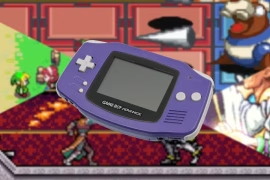
Game Boy Advance remains one of the most iconic handheld systems of all time, with a rich library of classics and homebrew alike. But there’s more to this little purple powerhouse than just playing cartridges off a shelf. One of the most exciting aspects of modern retro gaming is the ability to flash your own ROMs onto cartridges and turn digital files into playable, physical games. Whether it’s a fan translation, an unreleased prototype, a homebrew project, or a personal favorite mod, flashing ROMs lets you bring the virtual to life. In this guide, I’m going to walk through exactly what you need to flash a GBA ROM and how to do it right.
There’s something deeply satisfying about holding a cartridge that contains a game you patched, modified, or created. You’re not just preserving retro games, you’re extending their life and introducing new ways to enjoy them. The process may sound technical, but once you’ve done it once or twice, it becomes second nature.
This guide will cover the tools, hardware, software, and steps needed to successfully flash a GBA ROM onto a cartridge. Whether you’re making a fan-patched copy of Mother 3 or compiling your own GBA multicart, this is where it all begins.
Why Flashing GBA ROMs is Worth It
Before diving into the technical stuff, I’ll briefly touch on why this is such a worthwhile pursuit.
Flashing GBA ROMs gives you the chance to:
- Play translated versions of Japan-only games on real hardware
- Test homebrew titles without needing an emulator
- Recreate physical carts for rare, unreleased, or modded games
- Build customized multicarts with your favorite GBA titles
- Preserve and archive gameplay in a way that transcends the digital
Being able to flash a ROM means breaking out of emulator-only gameplay and restoring the tactile, on-the-go experience that defined the GBA era. If you’re wondering what you need to flash a GBA ROM, it’s not just hardware, it’s a mindset of creative restoration.
The Core Components
Let’s get into the nuts and bolts. What you need to flash a GBA ROM starts with a few critical tools. Each part plays a role in getting the data from your computer onto a working cartridge.
1. Flash Cartridge
This is the heart of the process. A flash cartridge is a special type of GBA cart with rewritable memory inside. You load the ROM file onto the cart and play it like a normal game.
There are a few well-known brands and options:
- EZ-Flash Omega/Definitive Edition – Affordable, compatible with most ROMs, and very user-friendly.
- EverDrive GBA X5 Mini – Premium quality and excellent build, with real-time save support.
- Generic GBA flash carts – Some budget models exist, but may lack compatibility or durability.
I started with an EZ-Flash and still use it today. It’s reliable, supports large ROMs, and works well for flashing both commercial games and homebrew.
2. SD Card (MicroSD)
Most modern flash cartridges require a MicroSD card to store the ROMs. Choose a reputable brand, and aim for 8–32 GB, plenty of space for hundreds of GBA games.
Format the card to FAT32 for best compatibility. Avoid exFAT or NTFS unless the cart’s firmware explicitly supports it.
3. ROM File
You’ll need a clean GBA ROM file, either a dumped copy of your own game or a fan-translated or homebrew ROM. Make sure the file ends in “.gba” and is properly formatted. Patching tools like Lunar IPS or FLIPS may be used to apply translation or mod patches to a base ROM before flashing.
Be mindful of legal usage. Always own the original game if you’re using a dumped ROM.
4. Patching Software (Optional)
If you’re modifying a ROM, you’ll need tools like:
- Lunar IPS – For applying .ips patches.
- FLIPS – For .bps patches, which are popular in modern ROM hacking.
- MultiPatch (Mac) – A great cross-platform tool for applying various patch types.
Using these, you can create fan translations, bug-fixed editions, or customized game mods before putting them onto your cart.
5. Flash Cart Software or Kernel
Flash cartridges often require their own loader or kernel files. These are placed on the SD card and help the cartridge boot and run properly. For example:
-
EZ-Flash Omega needs the
ezkernel.binfile in the root directory. - EverDrive uses a set of OS files provided by Krikzz.
You can usually find these on the manufacturer’s website or forums. Keeping this software updated improves compatibility and fixes bugs.
That’s the short version of what you need to flash a GBA ROM. Now, let’s go through the setup and flashing process.
Setting Everything Up
Once you’ve gathered your components, it’s time to start assembling your setup. I usually start by formatting the MicroSD card using a tool like SD Card Formatter (free and reliable), making sure it’s FAT32.
Next, I load the necessary kernel files or OS software onto the card, followed by the ROMs. If I’ve patched any ROMs, I double-check them in an emulator first to make sure they work.
Then I plug the MicroSD into the flash cart, insert the cart into my Game Boy Advance, and power it on. If everything’s in order, the cartridge boots into a menu where I can browse the SD card and launch any loaded ROMs.
This is when it really starts to feel like magic, seeing a patched ROM or custom game load on actual hardware after just a few steps.
Flashing Permanent ROMs (Optional)
Some flash carts allow you to write a ROM permanently into memory, rather than loading it temporarily from the SD card. This is useful if you’re trying to create a single-game cart that behaves just like an official release.
Older models of flash carts used USB writers for this purpose. Today, some developers still use:
- GBA Flash Advance Writer – Plugs into a PC via USB and writes to Flash Advance carts.
- BennVenn's Joey Jr – A multi-purpose cart reader/writer that supports GBA.
- China-made USB flash carts – These come with their own software, often crude but usable.
If your goal is to flash one ROM and make a standalone physical cart, say for a translation project or as a gift, then permanent flash carts and USB writers are still viable.
In most cases though, modern flash carts with SD cards are more flexible and user-friendly.
Save File Compatibility
GBA games use various types of save data, SRAM, Flash, EEPROM, and not all flash carts support every save method perfectly. That’s why many come with save patching tools.
For instance, EZ-Flash offers built-in save patching to convert unusual save types into a compatible format. This is especially important when flashing fan-translated RPGs or custom games.
Always check that your cart is saving correctly after flashing. I usually save my game, reboot the console, and confirm the save is still there. Some carts save instantly, others write saves to the SD card on power-down, so keep that in mind before yanking the battery.
Multicarts and Custom Menus
One of the most fun aspects of flashing GBA ROMs is building your own multicarts. You can group your favorite games into folders, add a loader screen, or even design custom artwork for the menu.
Some tools let you build a single ROM image containing multiple games, though these are more complex and often used in ROM hack or preservation circles.
Still, even a simple SD card full of well-organized ROMs can feel like a fully customized game library. Add in custom labels and boxes, and it’s like you’ve built your own GBA library from scratch.
That’s one of the beautiful parts of what you need to flash a GBA ROM, it’s not just about software or hardware, but also about creativity and presentation.
Legal and Ethical Notes
Flashing ROMs walks a fine line between preservation and piracy. Personally, I only flash games I own physically, ROM hacks of those games, or homebrew software designed to be shared.
When flashing fan translations, I always apply patches to clean ROMs I’ve dumped myself. This ensures that the original developers and translators are respected, and that I’m not distributing anything illegal or unethical.
Being careful here isn’t just about legality, it’s about supporting the retro community and honoring the people who pour hours into these projects.
Troubleshooting Common Problems
Even with the best prep, things don’t always go smoothly. Here are a few problems I’ve encountered and how I solved them:
- Game won’t load: Double-check the ROM file name and format. Some carts need 8.3 filenames (8 characters max before the .gba).
- Save file isn’t created: Make sure the cart supports the game’s save type, and apply a save patch if needed.
- Corrupt graphics or crashing: Try running the ROM in an emulator. If it crashes there too, the patch or ROM may be bad.
- Flash cart won’t boot: Check that kernel files are on the SD card. Try reformatting or using a different SD card.
The more you flash, the more patterns you recognize. In time, diagnosing these hiccups becomes routine.
Final Thoughts
If you’re wondering what you need to flash a GBA ROM, the answer is part technology, part curiosity, and part love for retro gaming. It’s not just a mechanical process, it’s a form of modern-day craftsmanship that brings together community knowledge, old hardware, and new creativity.
Flashing ROMs lets you revive lost games, explore translations, test your own ideas, and play them all on the hardware they were meant for. And with the tools available today, the barrier to entry has never been lower.
Once you’ve done it a few times, it becomes addictive. You’ll start experimenting with label art, cartridge shells, and maybe even designing your own homebrew title. And all of it starts with understanding what you need to flash a GBA ROM, and taking that first step.