How To Check If New Games Support Haptic Feedback Features
Haptics have come a long way since the rumble packs that shook our N64 controllers. Today, new releases may include DualSense haptics and adaptive triggers, HD rumble on Switch, force feedback wheels on PC and consoles, and even full-body cues with haptic vests. To quickly check if a game supports them, start with the platform store page (Features section), verify specifics in developer blogs or patch notes, cross-check community databases, then confirm in-game via settings and a short test. If you’re on PC, don’t forget drivers and middleware. Below is a practical, preservation‑minded checklist you can use—and contribute back to community resources and Retro Gaming Blog roundups—to make smarter buying and setup decisions.
Know the haptic types you are looking for
Haptic feedback is tactile information delivered through the skin via vibrations, resistance, or motion so you can feel in‑game events like collisions, footsteps, or weapon fire, as summarized in Meta’s Unity Haptics Design Guidelines.
-
Vibration/HD rumble: Traditional controller motors generate patterns ranging from soft buzzes to hard jolts. HD rumble refines this with higher‑fidelity waveforms that can simulate textures or directional cues. Classic rumble took off in the mid‑1990s; titles like GoldenEye 007 and Half‑Life used it to signal hits and explosions, tracing a lineage highlighted in Xeeltech’s overview of haptics in gaming.
-
Adaptive triggers: Some controllers (notably PS5’s DualSense) add mechanical resistance that changes dynamically, so drawing a bow or a weapon misfire feels distinct. For example, “the trigger can lock when a gun jams” in Deathloop—an oft‑cited DualSense showcase.
-
Force feedback: Motors in steering wheels and joysticks apply torque to simulate road texture, weight transfer, or recoil. The approach dates back to early‑1990s arcades like Virtua Racing and remains a cornerstone of sim racing according to Xeeltech’s history and device taxonomy.
-
External haptics: Wearables and chairs add multiple actuators across the body. Common configurations include haptic vests with up to 40 actuators (e.g., bHaptics) and systems like Skinetic with up to 20 zones, enabling localized impacts, engine thrums, or footsteps across the torso.
Retro note: Rumble leapt from arcades to living rooms through the N64 Rumble Pak (think Star Fox 64) and PlayStation’s DualShock era—proof that tactile play isn’t new; it’s just gotten dramatically smarter and more precise.
Start with the platform store page
Publisher listings are the fastest way to confirm haptics before you buy. On most stores, haptic features appear right in the Features or Controller Support sections, and patch notes sometimes add them post‑launch. This is also where Retro Gaming Blog begins our quick checks.
Look for:
- PlayStation Store: “Haptic Feedback,” “Adaptive Triggers,” “Vibration Function.”
- Steam/Epic/Microsoft Store: “Controller Support,” “Vibration,” “Advanced Haptics” in Features or a “Controller” tab.
Quick verification flow:
| Step | Where to look | What to confirm |
|---|---|---|
| 1. Game title | Platform store page | Supported platforms and peripherals |
| 2. Features section | Same page | DualSense haptics, adaptive triggers, vibration/HD rumble |
| 3. Controller tab/notes | Same page | Force feedback wheel support, external device callouts |
| 4. Patch notes/News | Store News or official site | Post‑launch additions or quality improvements |
Tip: On mobile and web, some games use device vibration via the W3C Vibration API; check mobile store listings and developer docs for “vibration” or “haptics” references as outlined in UX Pilot’s guide to haptic user interactions.
Read developer blogs and patch notes
Studios frequently detail the “feel” they ship. These posts help you separate a simple buzz from nuanced implementation. Retro Gaming Blog prioritizes these primary sources because they describe intent, not just toggle support.
-
Callouts to spot: “trigger lock when a weapon jams,” “texture simulation through haptics,” “rain and weather rumble,” or “weapon kick.” For instance, Deathloop’s “trigger lock” and Ratchet & Clank’s textured feedback are widely documented on the Android Central PS5 DualSense list, which compiles game‑specific haptic notes from official materials.
-
Accessibility angles: First‑party titles like The Last of Us Part I emphasize speech cues and scene emphasis with controller haptics—valuable context if you rely on tactile feedback.
Mini‑glossary of common in‑game haptic cues:
- Weapon kick: short, sharp bursts on fire or reload
- Footstep textures: light, granular pulses on different surfaces
- Weather rumble: low, rolling cues during storms
- Trigger tension: progressive resistance for bows, throttles, or brakes
- Damage/collision: staccato hits upon impact
Cross-check community databases and compatibility lists
Community‑curated pages reveal real‑world support, workarounds, and PC specifics.
- Retro Gaming Blog: Our roundups track new releases with notable haptics and flag standout implementations across platforms.
- For PC games with DualSense haptics or advanced patterns, see PCGamingWiki’s List of games that support HD haptic feedback; entries often note if SimHub or other steps are required, and when USB vs. Bluetooth changes capability.
- For PS5 specifics, Android Central’s maintained PS5 DualSense list is a fast cross‑check for haptic feedback and adaptive triggers across new releases.
- For sim racing and peripherals, vendor lists help. Next Level Racing’s compatible games page highlights titles like Assetto Corsa and F1 entries, and whether middleware is needed to unlock richer effects.
Tip: Testing legacy titles on PC? Some emulators route Switch HD rumble to DualSense or other pads, which can affect perceived support during personal tests—PCGamingWiki often flags these caveats.
Verify support in-game via settings and accessibility
Once installed, confirm haptics without guesswork:
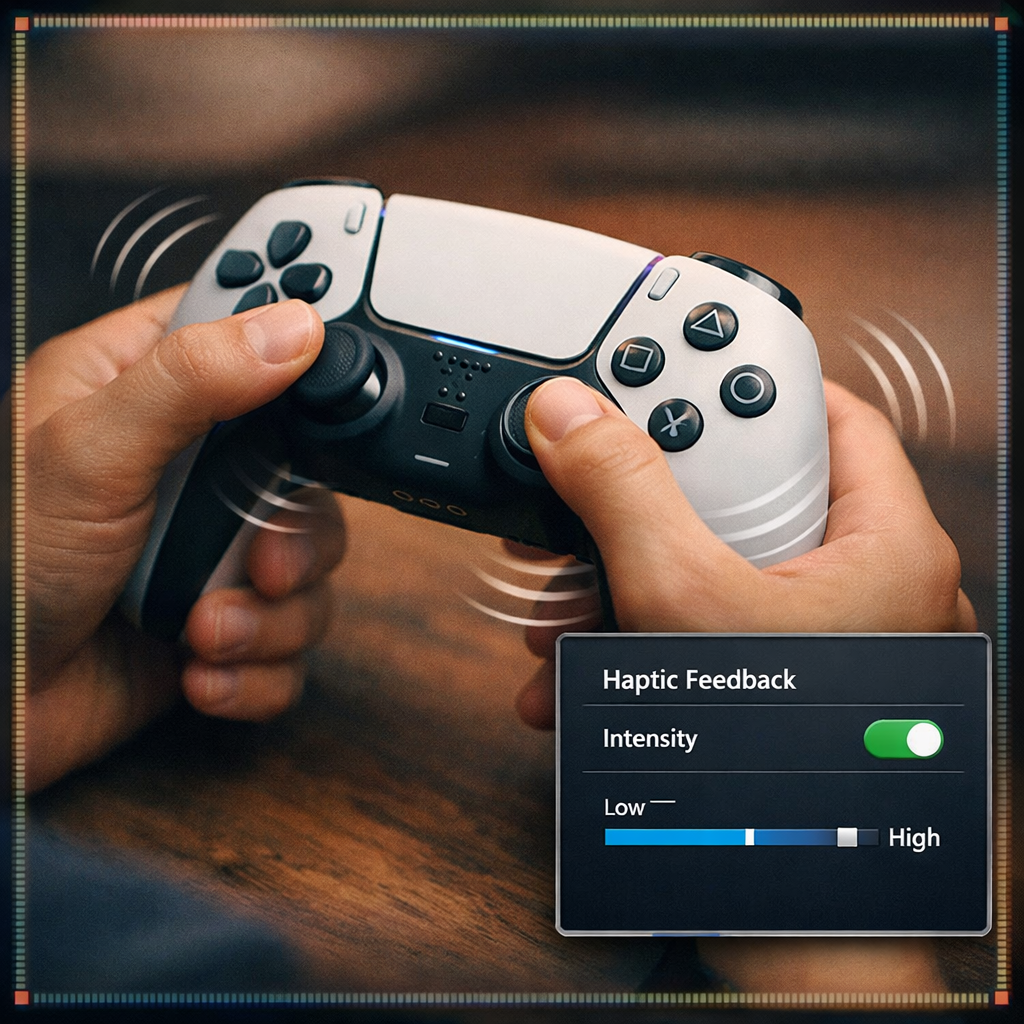
- Open Settings > Controller/Input for vibration toggles, intensity sliders, and (on PS5) adaptive trigger strength. Check Accessibility for remapping and alternate tactile cues.
- Quick test scenes:
- Action: Fire weapons (recoil/trigger tension), sprint (footstep textures), take damage (short bursts).
- Racing: Feel road chatter, kerbs, ABS pulsing, and engine RPM via your force feedback wheel or connected vest/chair.
Haptic accessibility in brief: Haptic accessibility uses tactile cues to supplement or replace audio/visual information, improving playability for people with vision or hearing loss. Applied‑science studies report higher realism and emotional engagement with haptics, supporting broader accessibility goals in interactive media (see MDPI’s applied research and classic research on the role of haptics in games from IntechOpen).
Test with your hardware, drivers, and middleware
Great haptics only shine when your setup is healthy.
- Update controller firmware, console/OS, and PC haptics drivers.
- On PC, install any required middleware (e.g., SimHub) or vendor suites; many racing titles need these layers to drive vests, bass shakers, or enhanced wheel effects. Some ecosystems also use TrueForce‑style integrations.
Step‑by‑step:
- Connect hardware (USB preferred for advanced DualSense haptics on PC)
- Update firmware/drivers (controller, OS, storefront client)
- Install and configure middleware (e.g., SimHub setup profiles)
- Enable in‑game haptics/force feedback and set intensity
- Run a known haptic scenario (gunfire, kerbs, crashes) and verify feel
Device classes to test:
- Gamepads: DualSense/DualShock, Xbox (impulse triggers and vibration)
- Wheels/joysticks: force feedback wheelbases and HOTAS
- External haptics: vests/chairs with multiple actuators (e.g., up to 40 in bHaptics; up to 20 in Skinetic per Xeeltech)
Use diagnostic tools to confirm haptic events
- Turn on verbose logging in Steam Input or your platform’s controller tools. Fire off repeatable events (weapon volleys, drift over kerbs) and watch for haptic calls to trigger.
- For creators and modders: Unity and Unreal expose haptic APIs, and editor‑integrated tools help you preview patterns. Interhaptics Haptic Composer tutorials show how to design and audition weapon, car, and footstep effects for accurate timing and intensity.
Document your findings and share with the community
Preservation starts with good notes. Standardize your results and give back.
- Mini template:
- Game / Platform / Version:
- Haptics confirmed: vibration | HD rumble | DualSense haptics | adaptive triggers | force feedback wheel | haptic vest/chair
- How tested: hardware, drivers, middleware, in‑game settings
- Issues/quirks: USB vs. Bluetooth differences, frame drops affecting haptics, missing effects
- Sources: platform store page, developer patch notes/blog, community database link
- Contribute updates to PCGamingWiki entries and vendor compatibility lists, and drop tips to Retro Gaming Blog so players and collectors avoid feature FOMO. If you’re still deciding whether to buy now or wait, see our guide on avoiding preorder FOMO.
- Add 10–15 second clips or GIFs of key haptic moments (e.g., a trigger lock or curb rumble) for clarity and shareability.
Frequently asked questions
How do I confirm DualSense haptics and adaptive triggers on PS5?
Check the game’s PlayStation Store Features for “Haptic Feedback” and “Adaptive Triggers,” then enable/tune them under Settings > Controller. Retro Gaming Blog roundups often note specific implementations like trigger locks or textured cues.
How can I tell if a PC game supports advanced haptics like wheels or vests?
Check community databases and vendor compatibility lists to see if extra drivers or middleware are needed, then enable vibration/force feedback and test with your hardware. Retro Gaming Blog flags common PC quirks in our notes.
Do Xbox Series controllers support the same haptics as DualSense?
They support robust vibration and impulse triggers, but not DualSense‑style adaptive resistance. Check the store listing and in‑game options, and see Retro Gaming Blog for title‑specific notes.
Where in a game’s menus do haptic options usually live?
Usually under Settings > Controller/Input for vibration and trigger options, with Accessibility for alternate tactile cues. Retro Gaming Blog guides highlight titles with per‑feature intensity sliders.
What should I try if my controller vibrates inconsistently or not at all?
Update firmware/drivers, confirm haptics are enabled, and check for required middleware on PC; then test a known haptic moment and use platform tools to verify events. Retro Gaming Blog’s quick checklist is to test, watch logs, then restart or reconnect.